Monero GUI software installation and maintenance guide for macOS
Monero GUI is a wallet for managing Monero cryptocurrency. The tutorial describes how to install and generate a wallet and send and receive funds.
Installation of Monero GUI software #
- First, select macOS software in the version suitable for your processor from the official Monero Project website and click Save file.
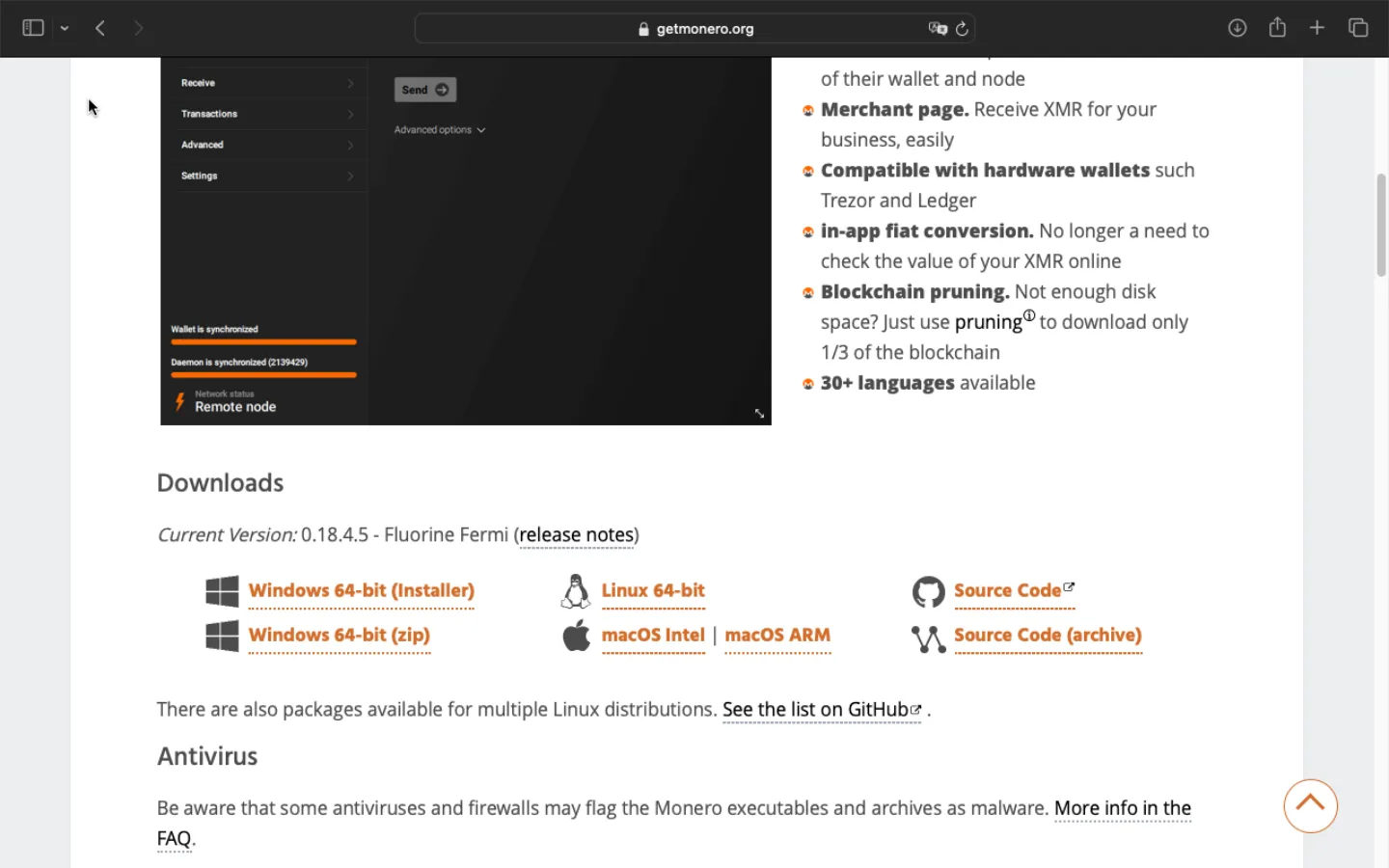
For Apple M-series processors, this will be the macOS ARM version.
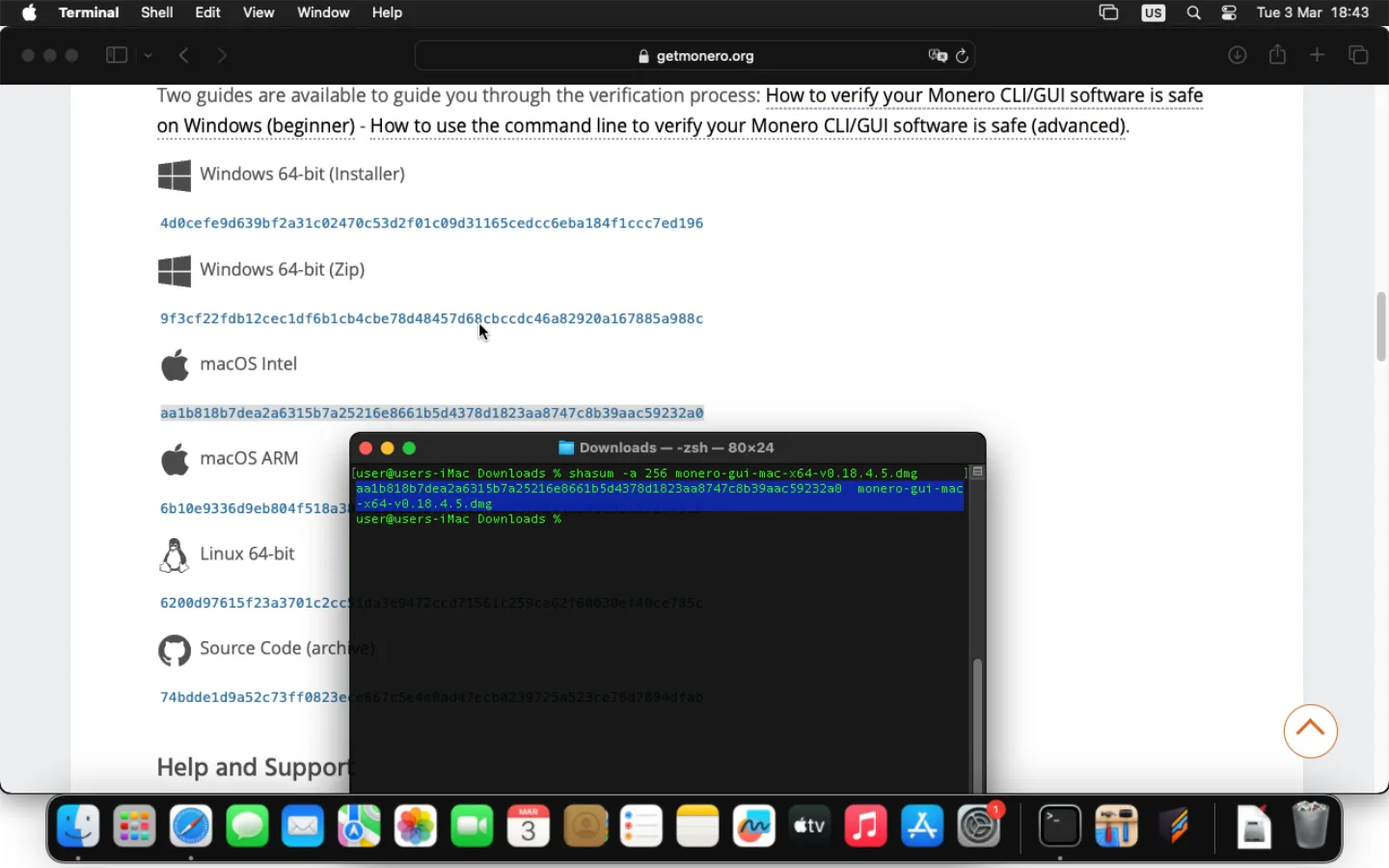
- In the terminal, type: shasum -a 256 [path to the monero-gui file downloaded in step 1] and press Enter. By default it will be located in /Users/
/Downloads/ directory. If the result agrees with the hash given on the official Monero Project website under Verify from step one appropriate for your software version, it means that it is correct and you can proceed with the installation.
|
|
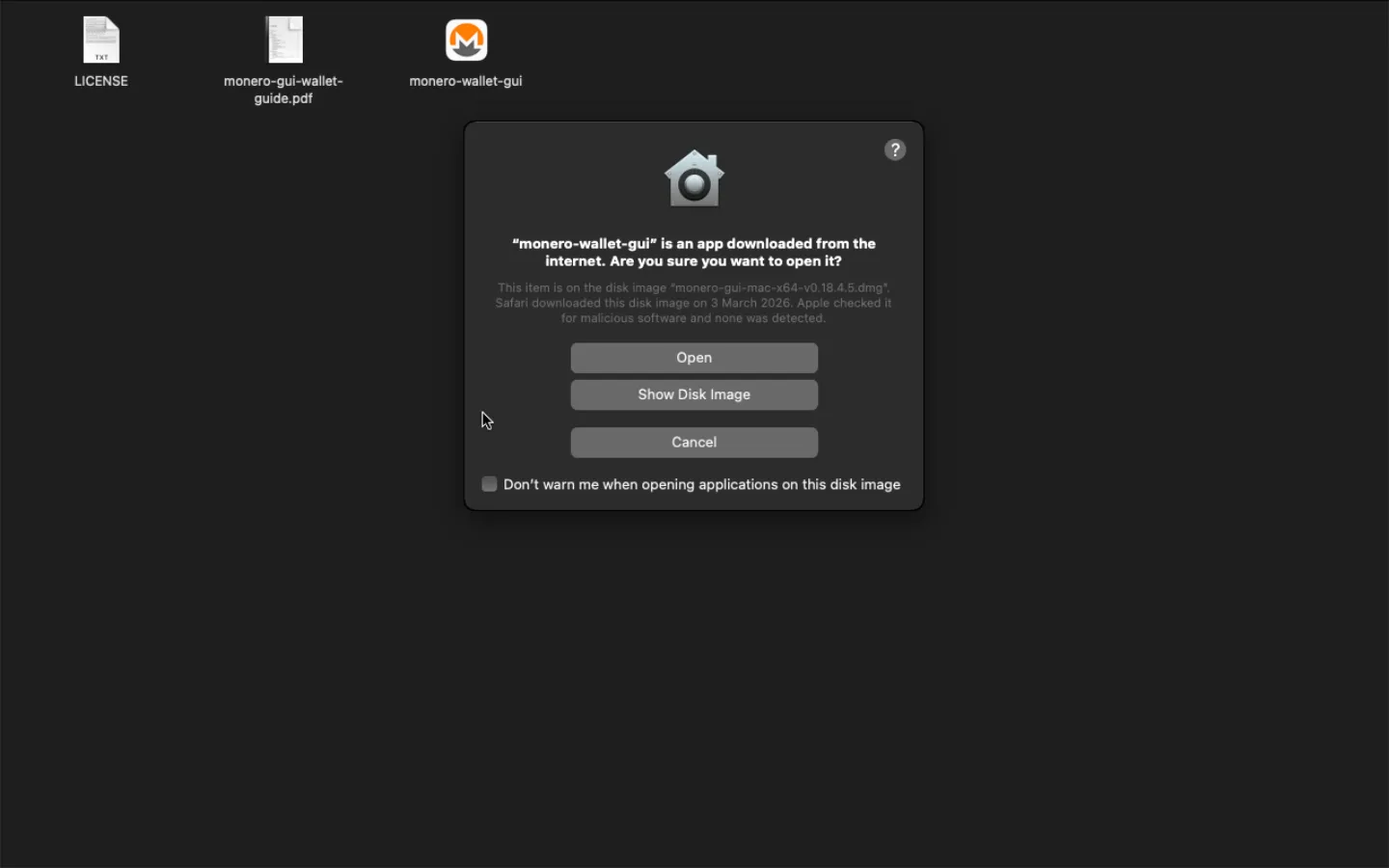
- Go to Downloads, double-click on the application icon, and click Open.
Generating a wallet #
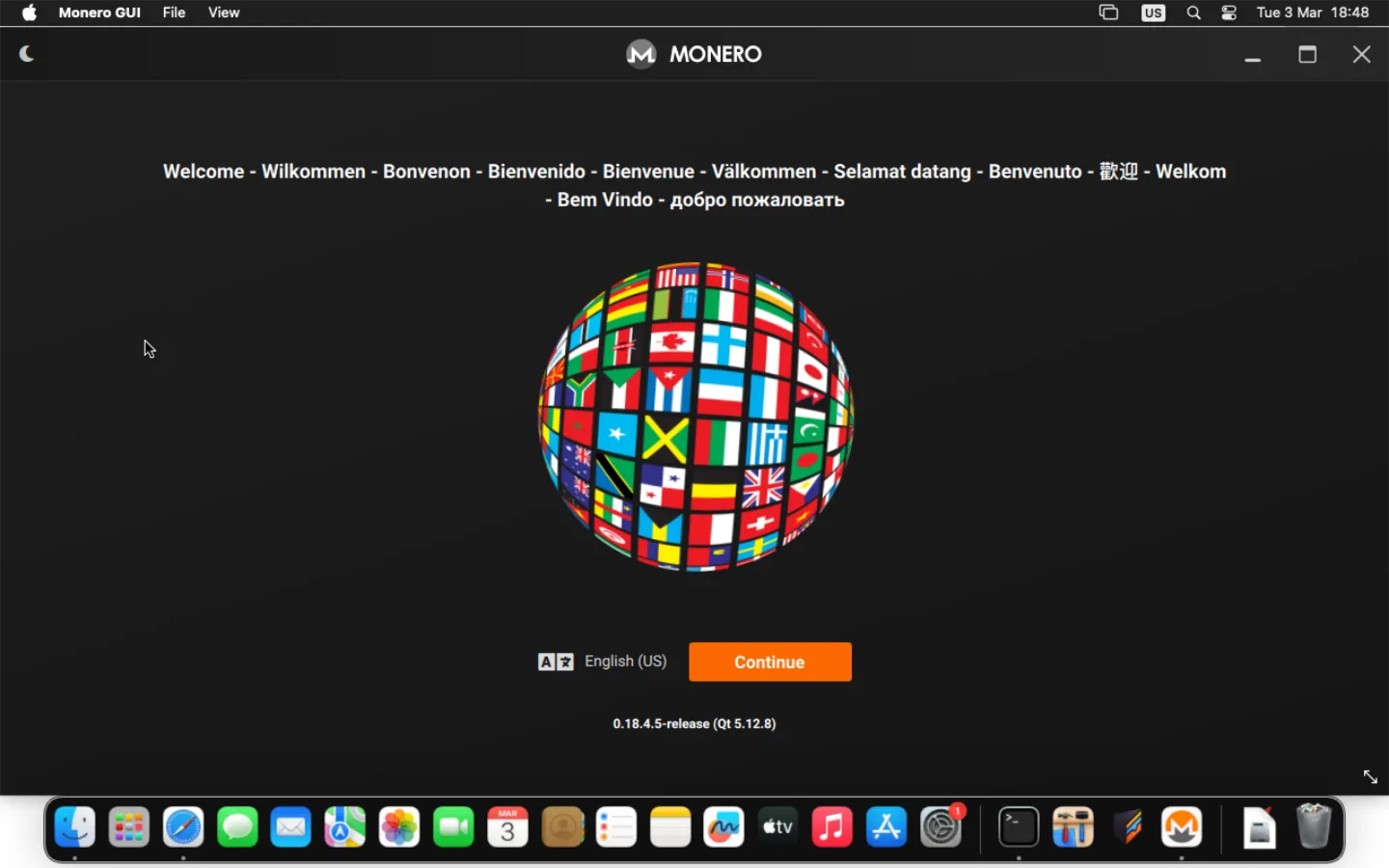
- Click Continue.
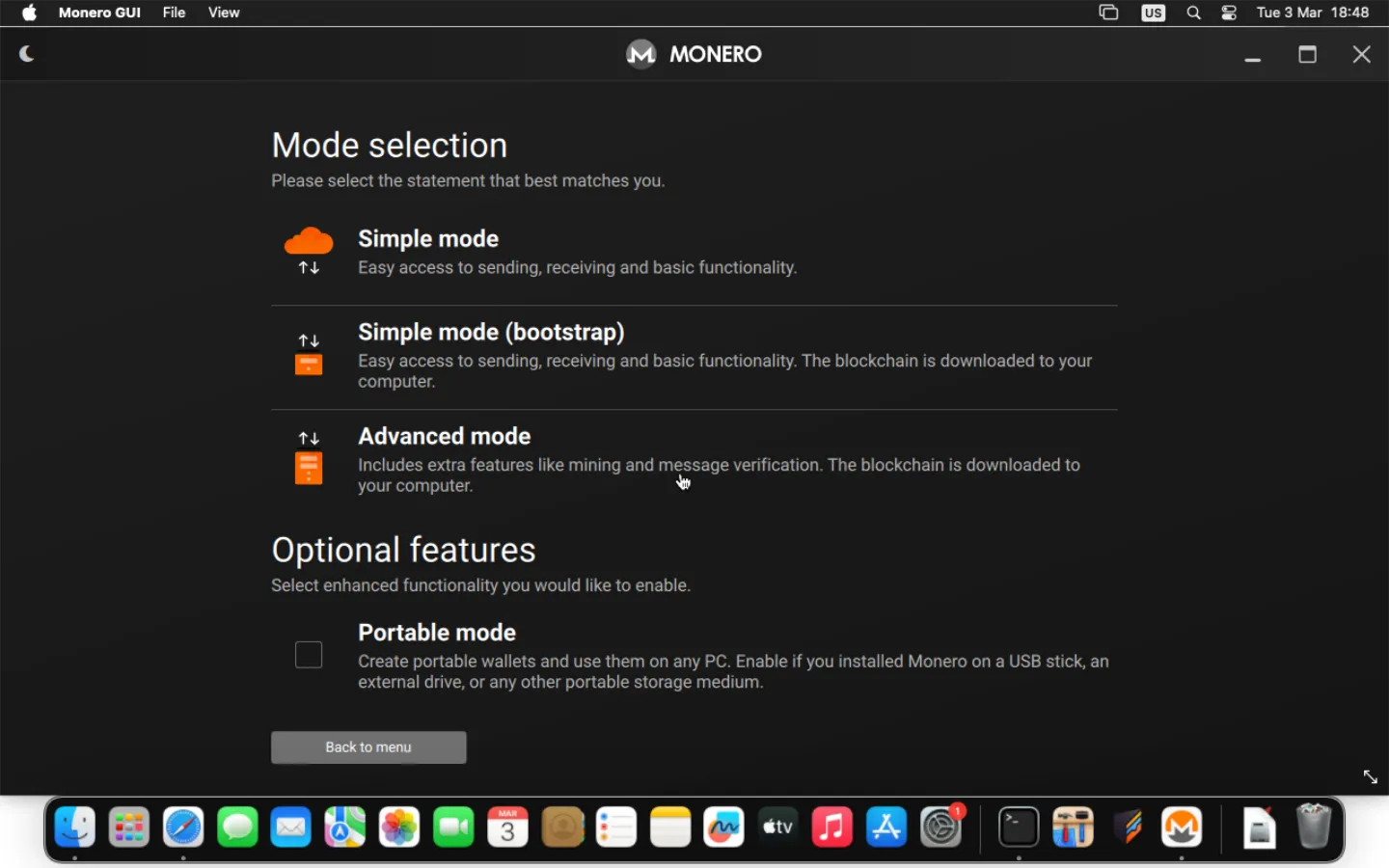
- Select Simple mode.
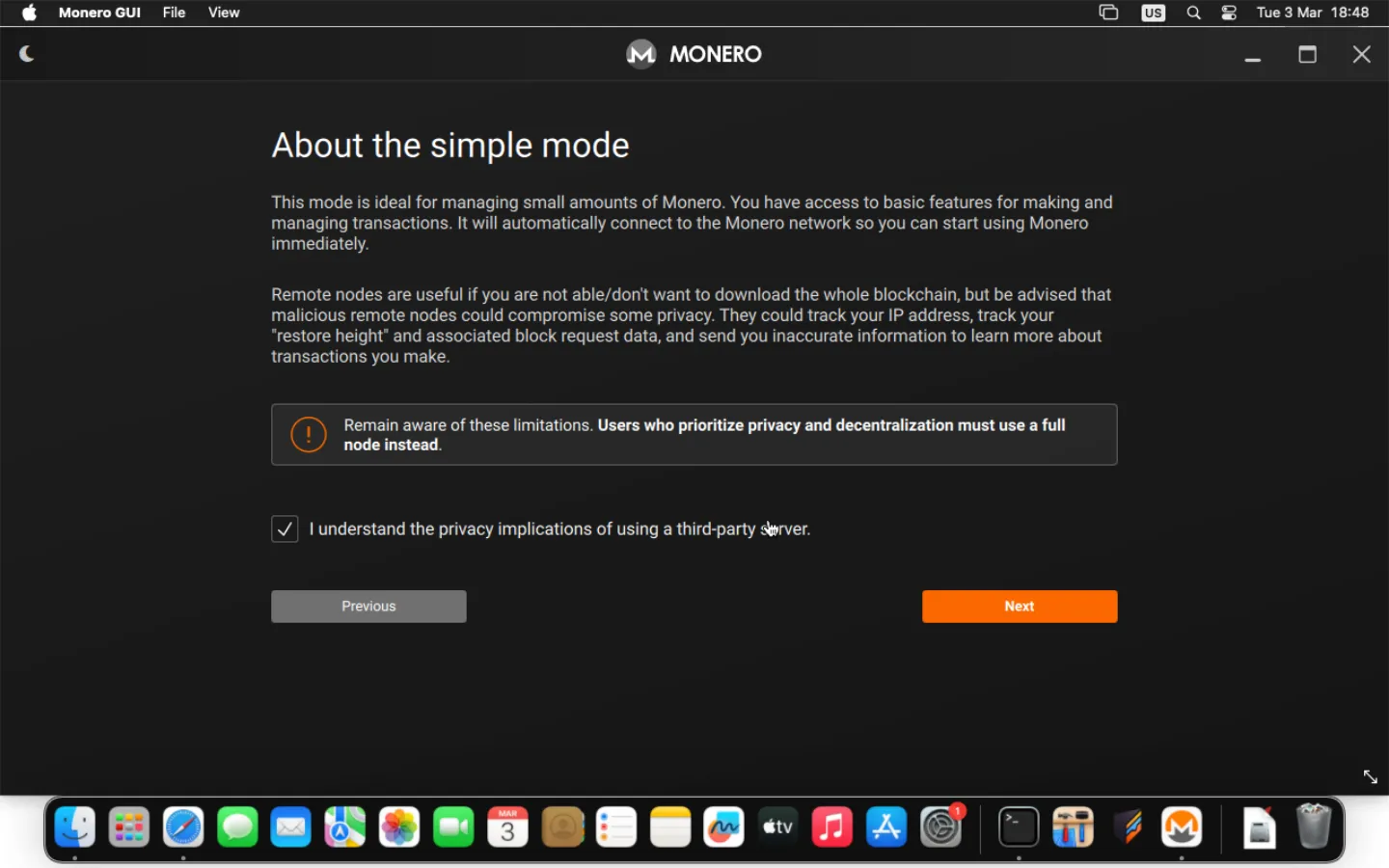
- Select I understand the privacy implications of using a third party server and click Next.
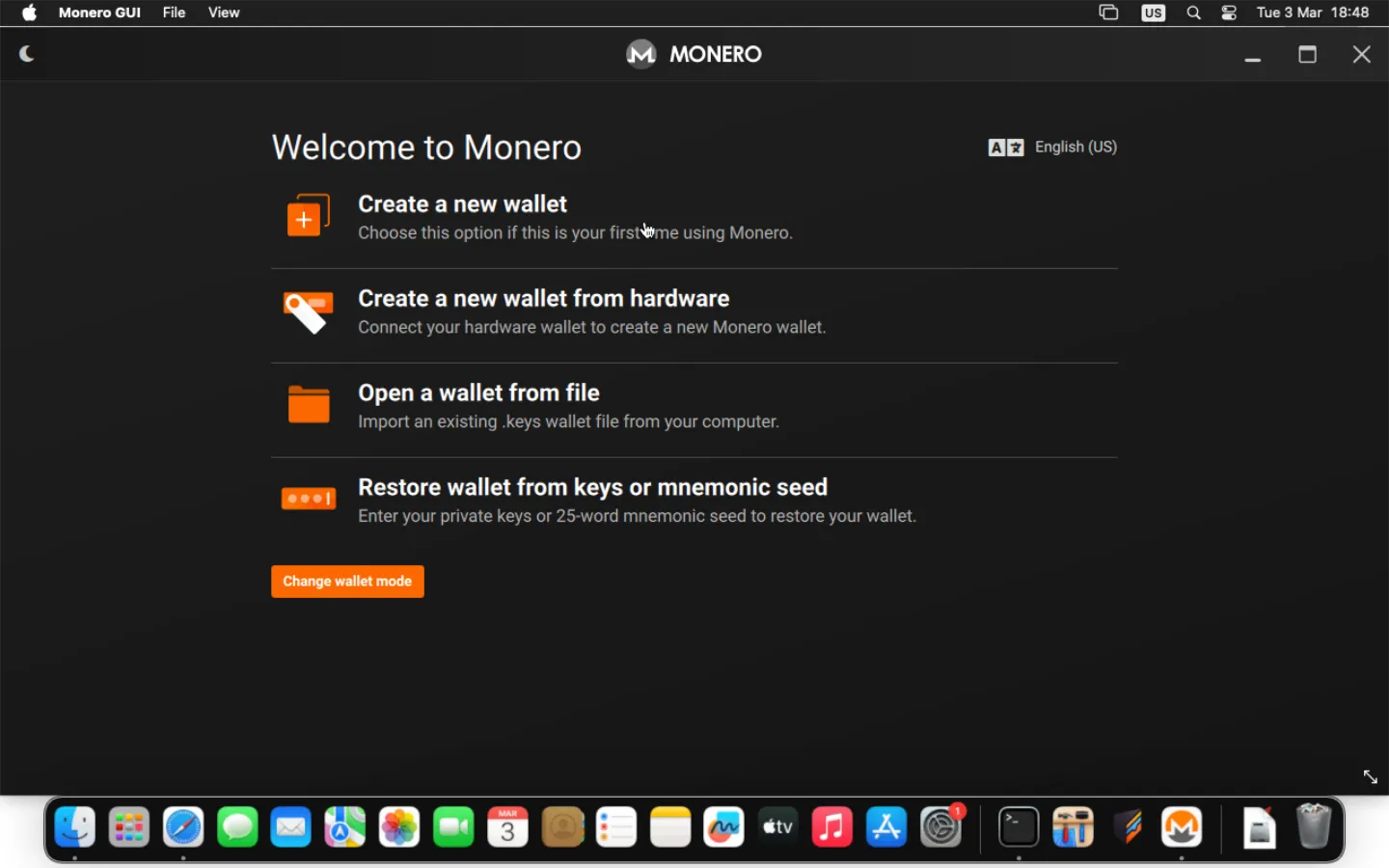
- Click Create a new wallet.
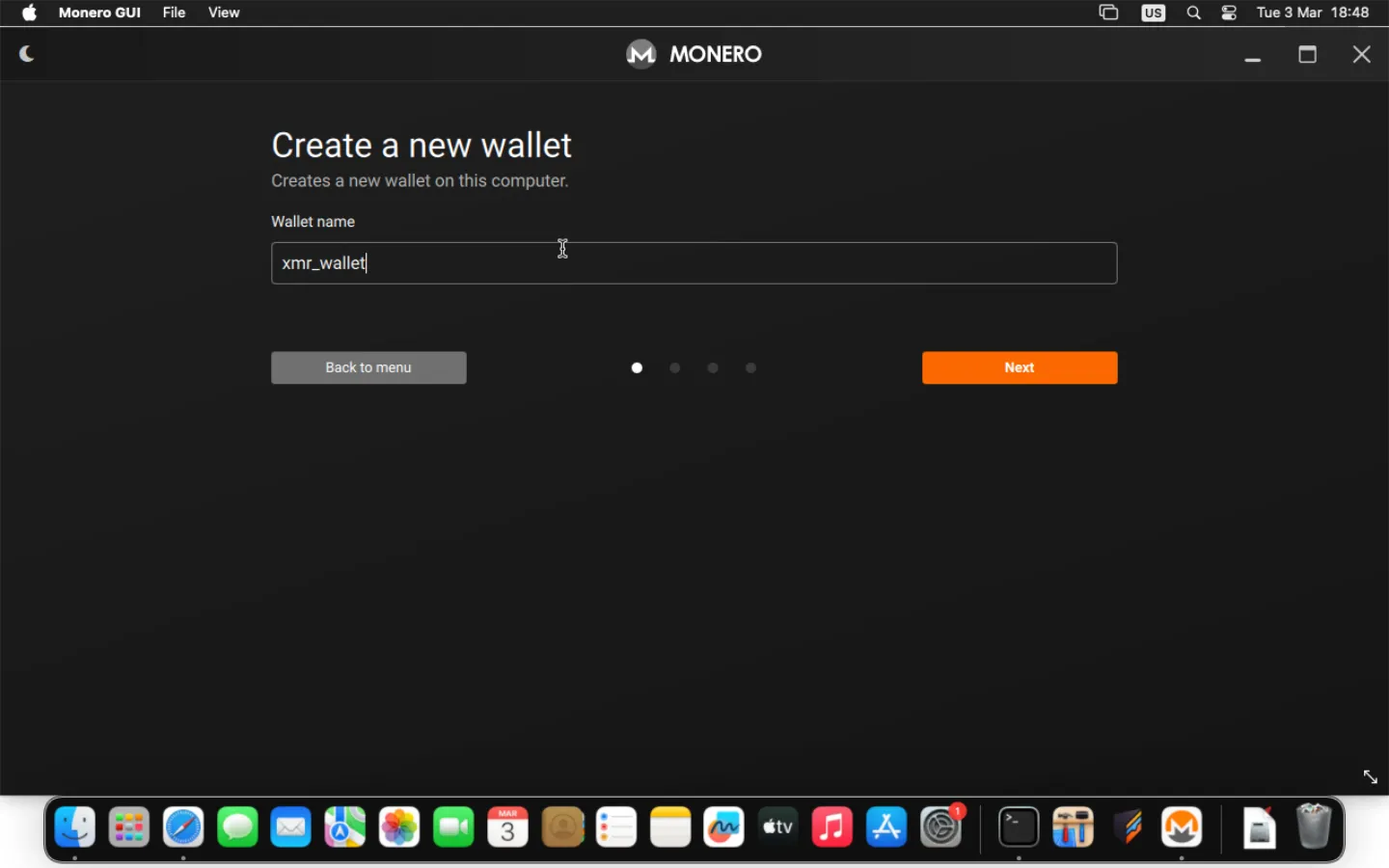
- Choose a name and click Next.
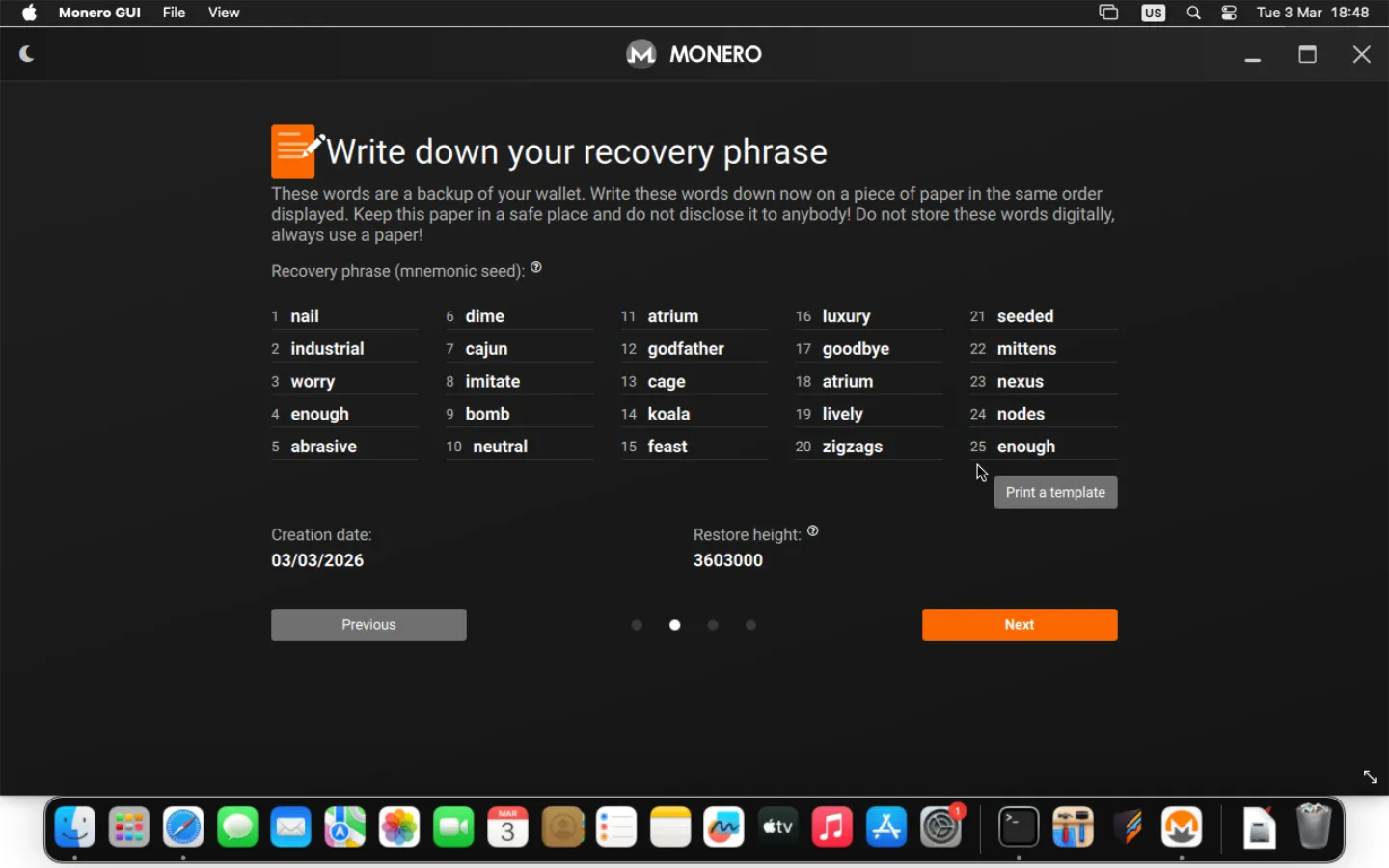
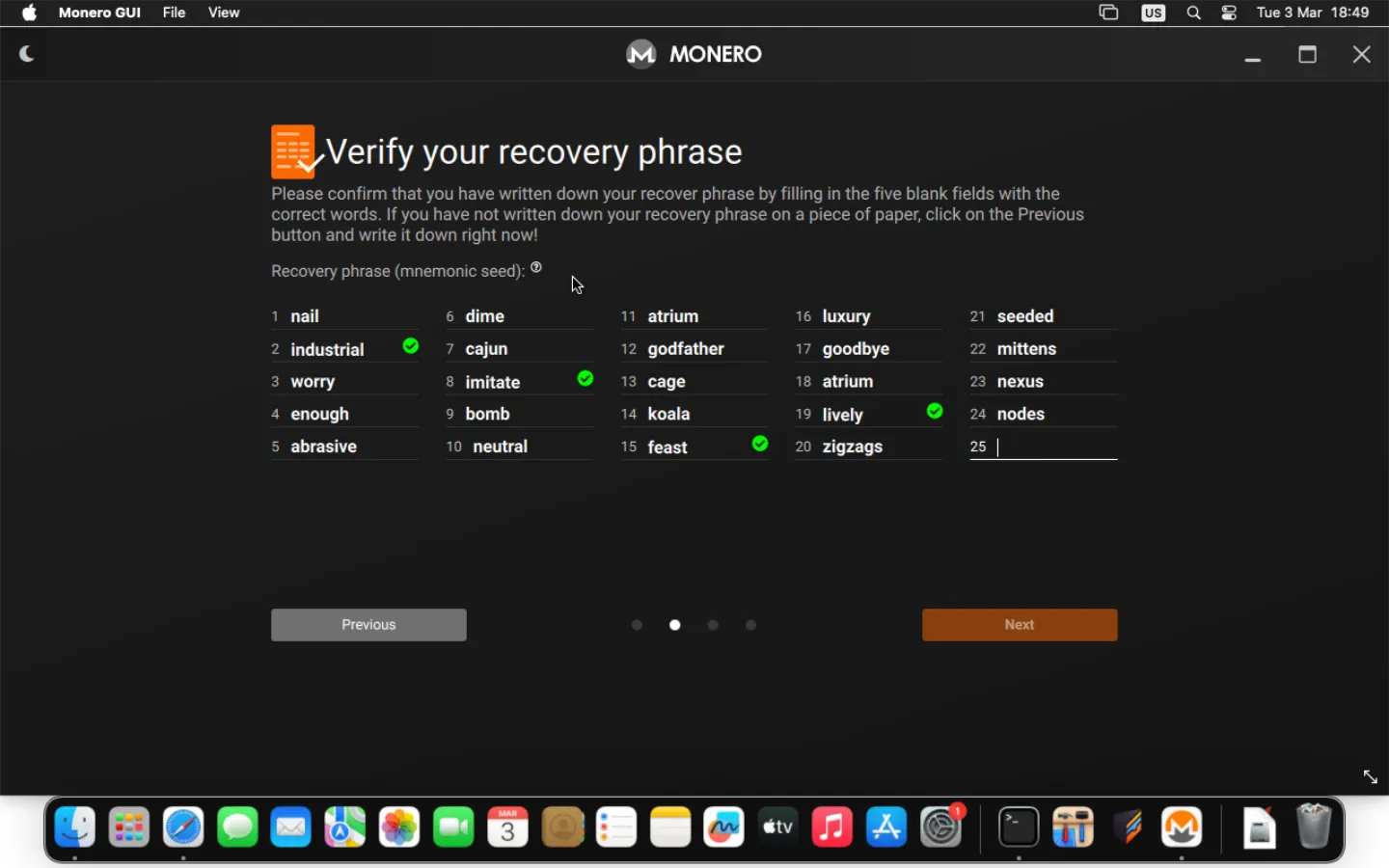
- The recovery phrase will be displayed; this is the security phrase. It should be saved in a safe place along with the date of wallet creation and the node size, for example, on an external USB drive encrypted with Veracrypt, Truecrypt, or LUKS. If recovery is required, you will be asked to provide a security phrase to recover the wallet along with its creation date. The creation date or node size is required to retrieve the correct number of blocks from the Monero network. Entering a date that is too late during recovery may result in an incorrect amount of funds displayed in the wallet. Write down the creation date, node size, and security phrase exactly in the order as displayed on the screen. Click Next and fill in the missing fields, then click Next again.
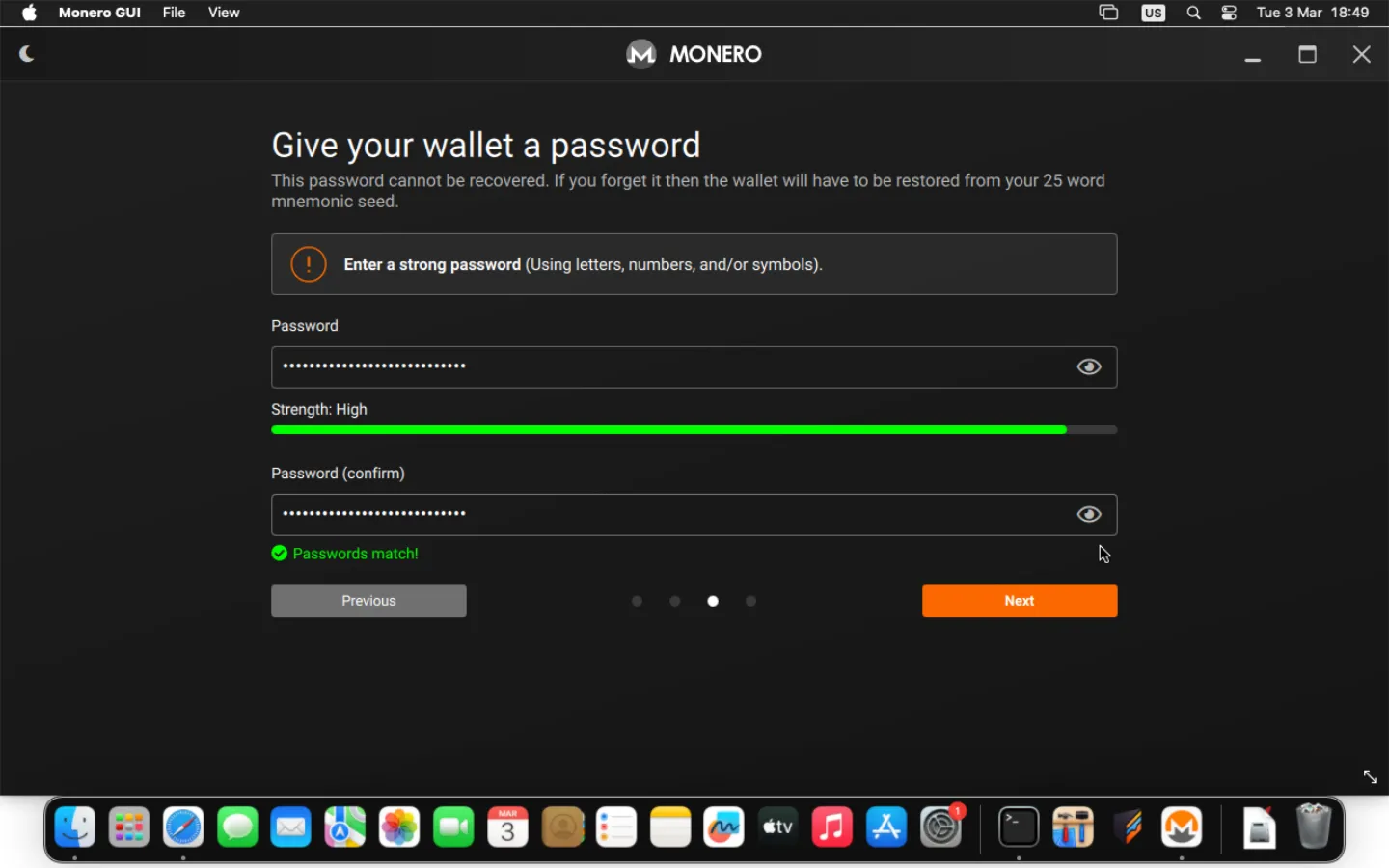
- Choose the password that will be necessary to open your wallet file and click Next.
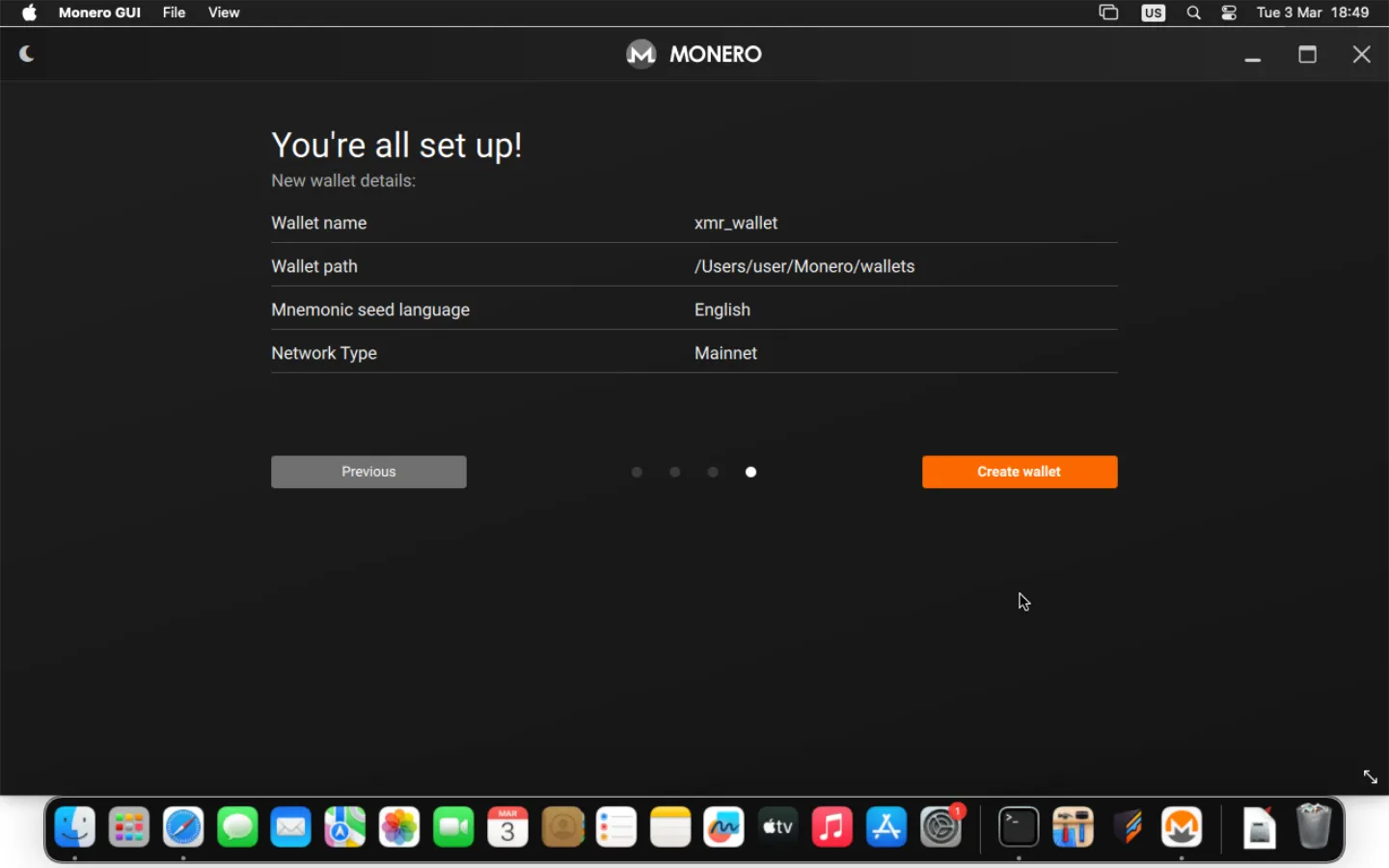
- Click Create wallet.
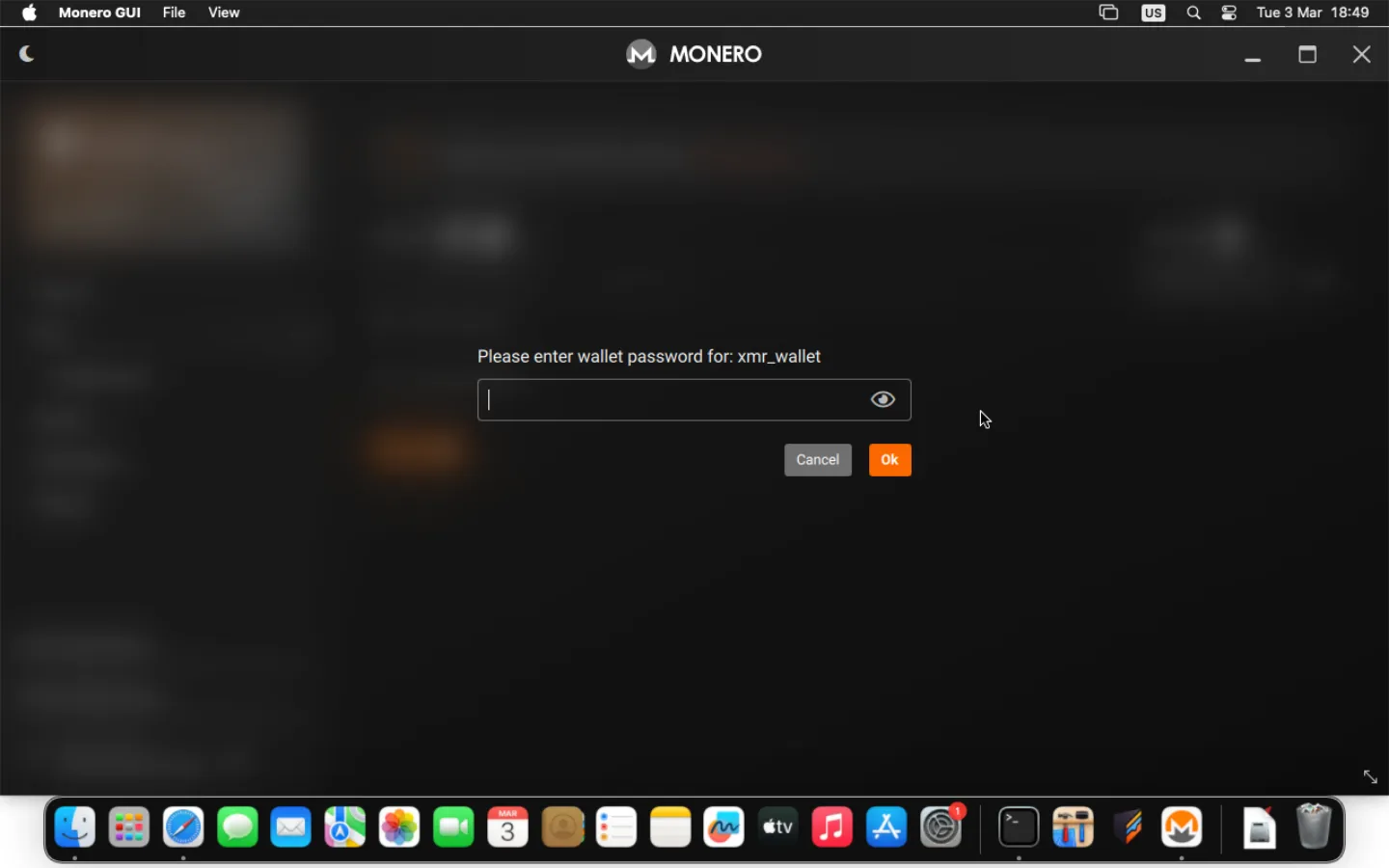
- Enter the password.
- Wait for the node information to be retrieved, which will be announced by Connected in the lower left corner. This may take some time during the first run.
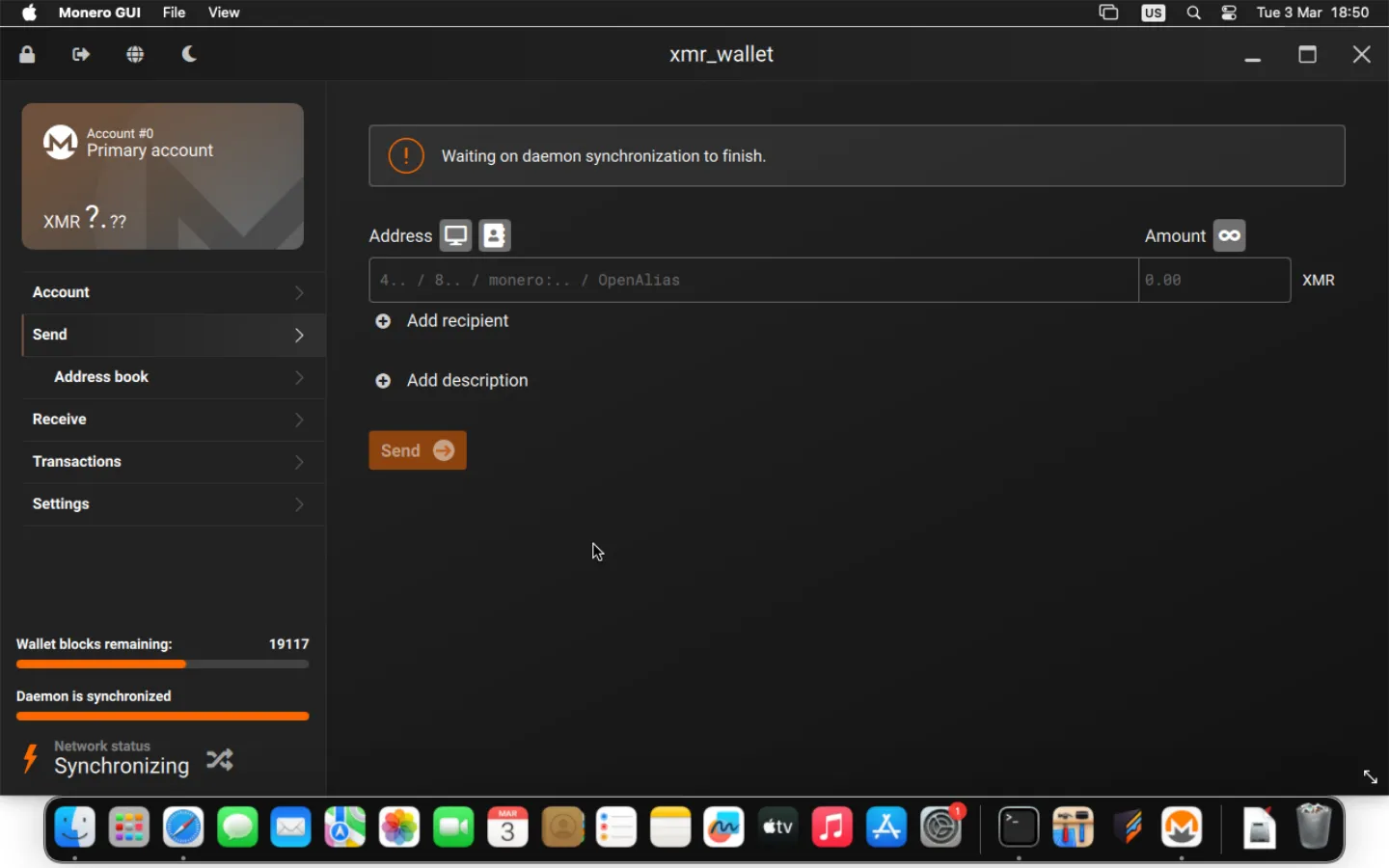
- In case of connection problems, click the crossed arrows icon next to the status in the lower left corner. This will cause a switch to another remote node.
Receiving funds #
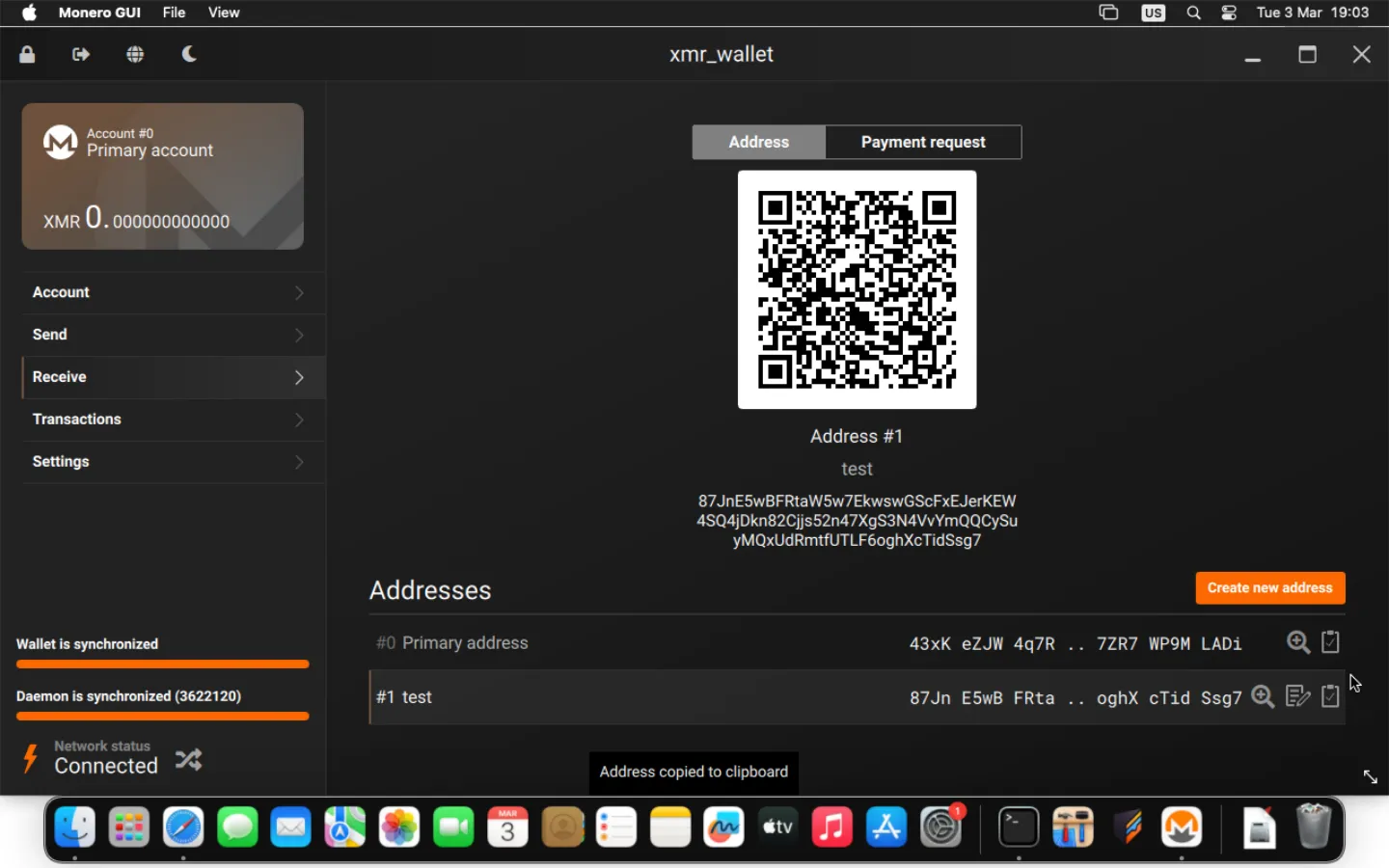
- Go to the Receive tab. There will be a list of your Monero addresses used to receive funds. You can generate new subaddresses by clicking Create new address. It is a good idea to use subaddresses once and generate a new one for each transaction, so that you take maximum care of your funds’ privacy. All incoming transactions to any of the subaddresses add up, and their balance is common to the entire account.
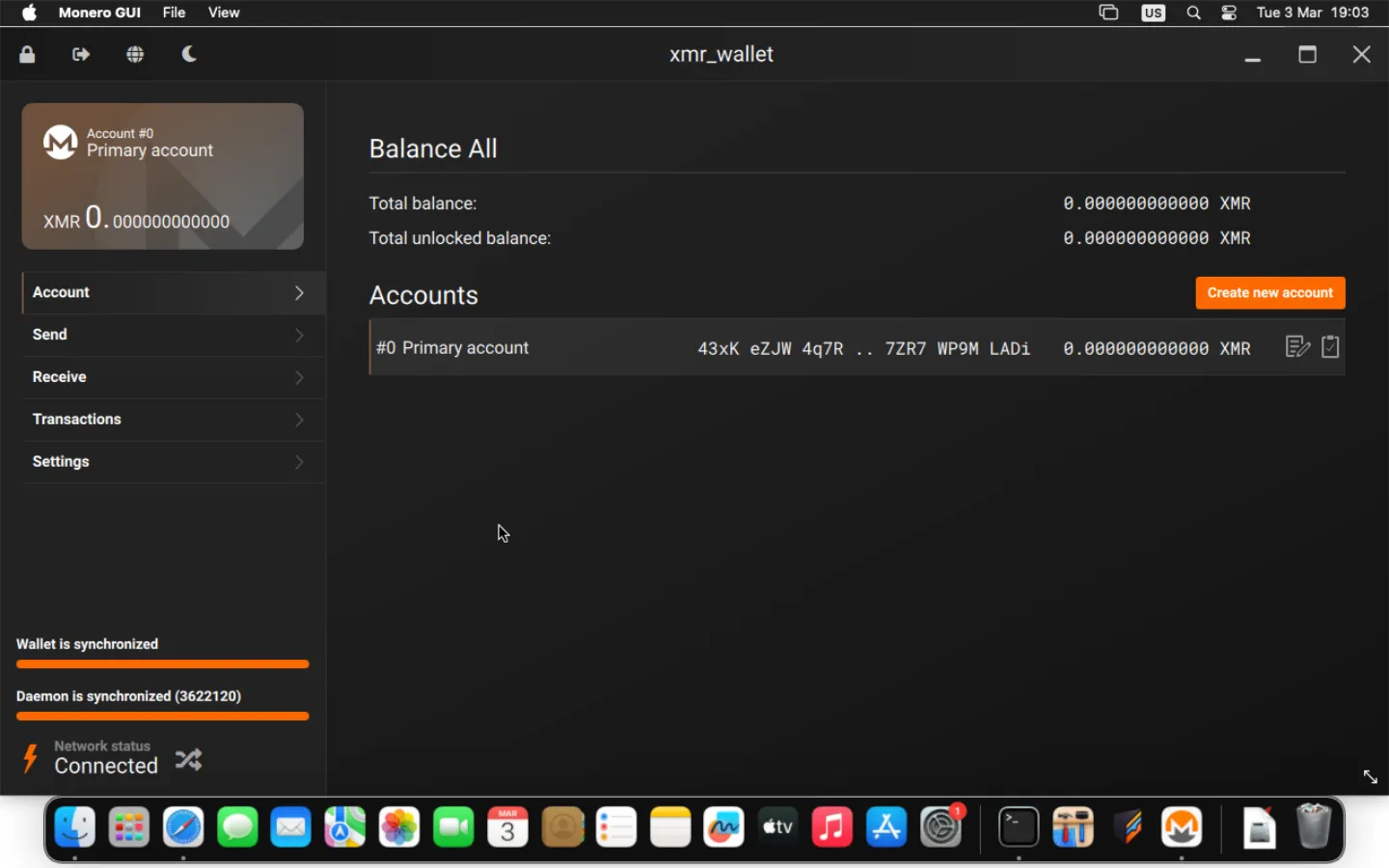
- To receive funds, copy your address by clicking on the clipboard icon at the end of each address line. Then paste it in the place where you want to receive the funds, for example, in the appropriate section of the exchange, or by sending it to the appropriate person.
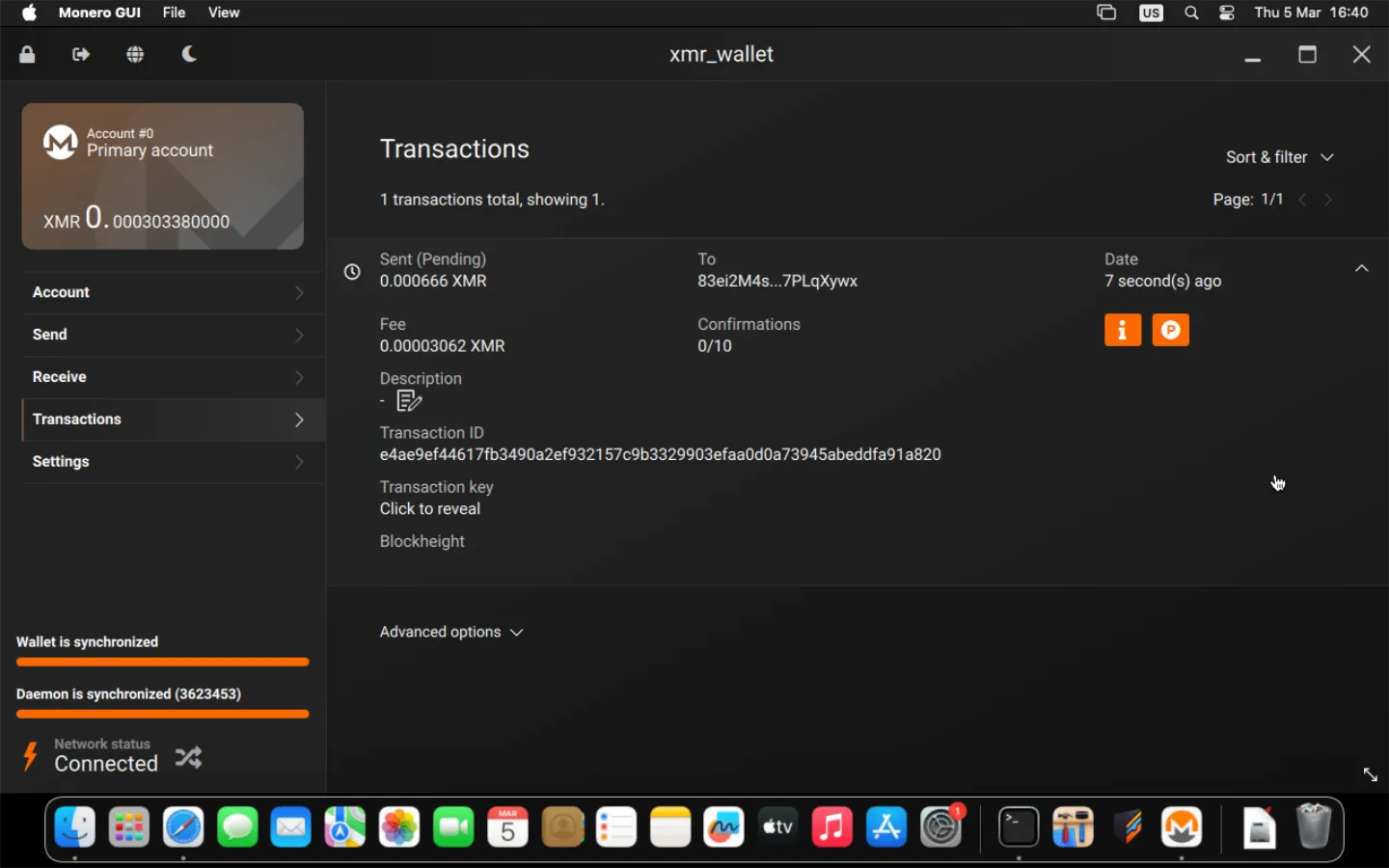
- After receiving the funds, click on the Transactions tab. The entire history of funds received and sent will be displayed.
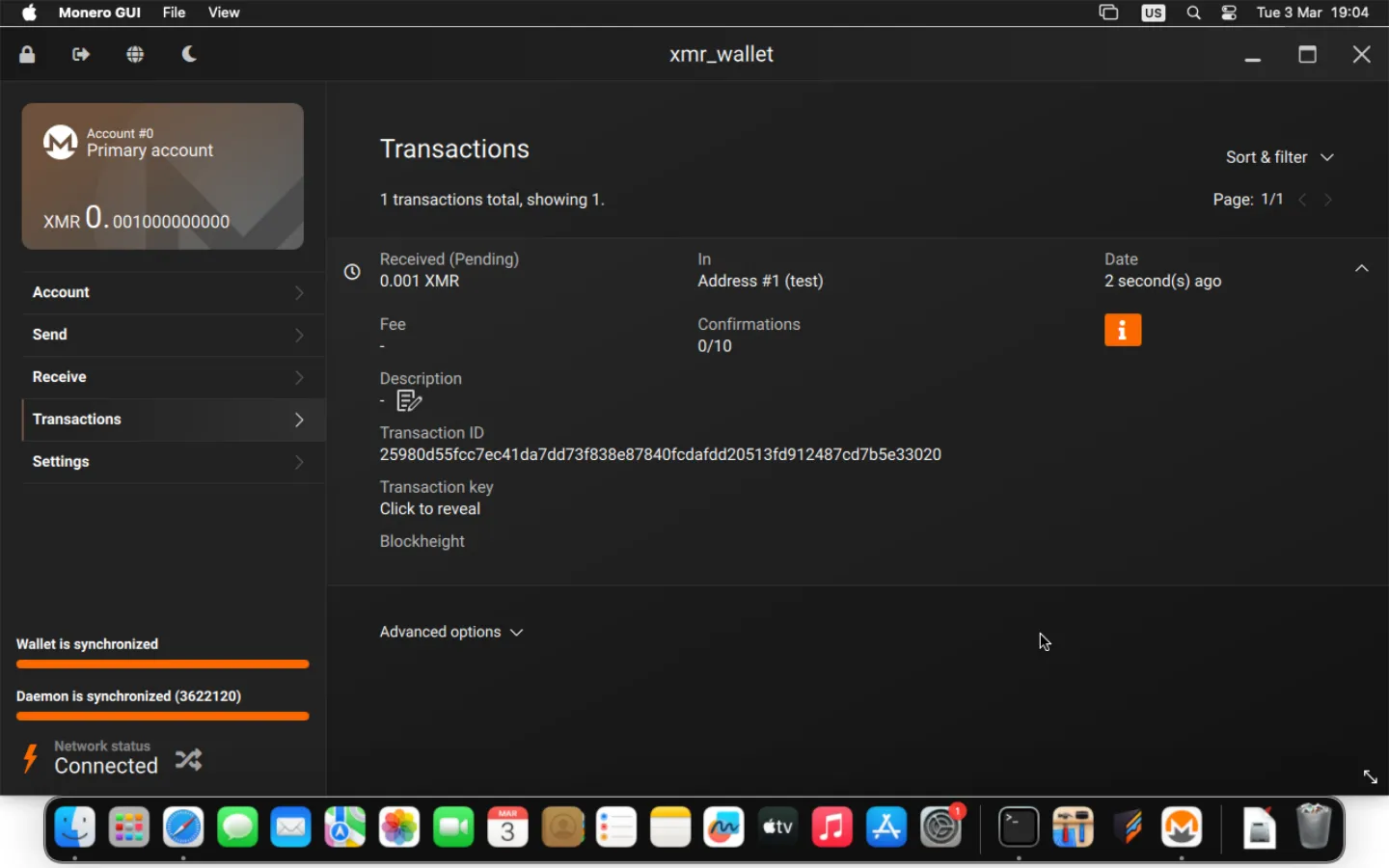
- You must wait for 10 confirmations from the Monero network before sending the received funds. The confirmation counter can be tracked on the fly under the Confirmations row.
Sending funds #
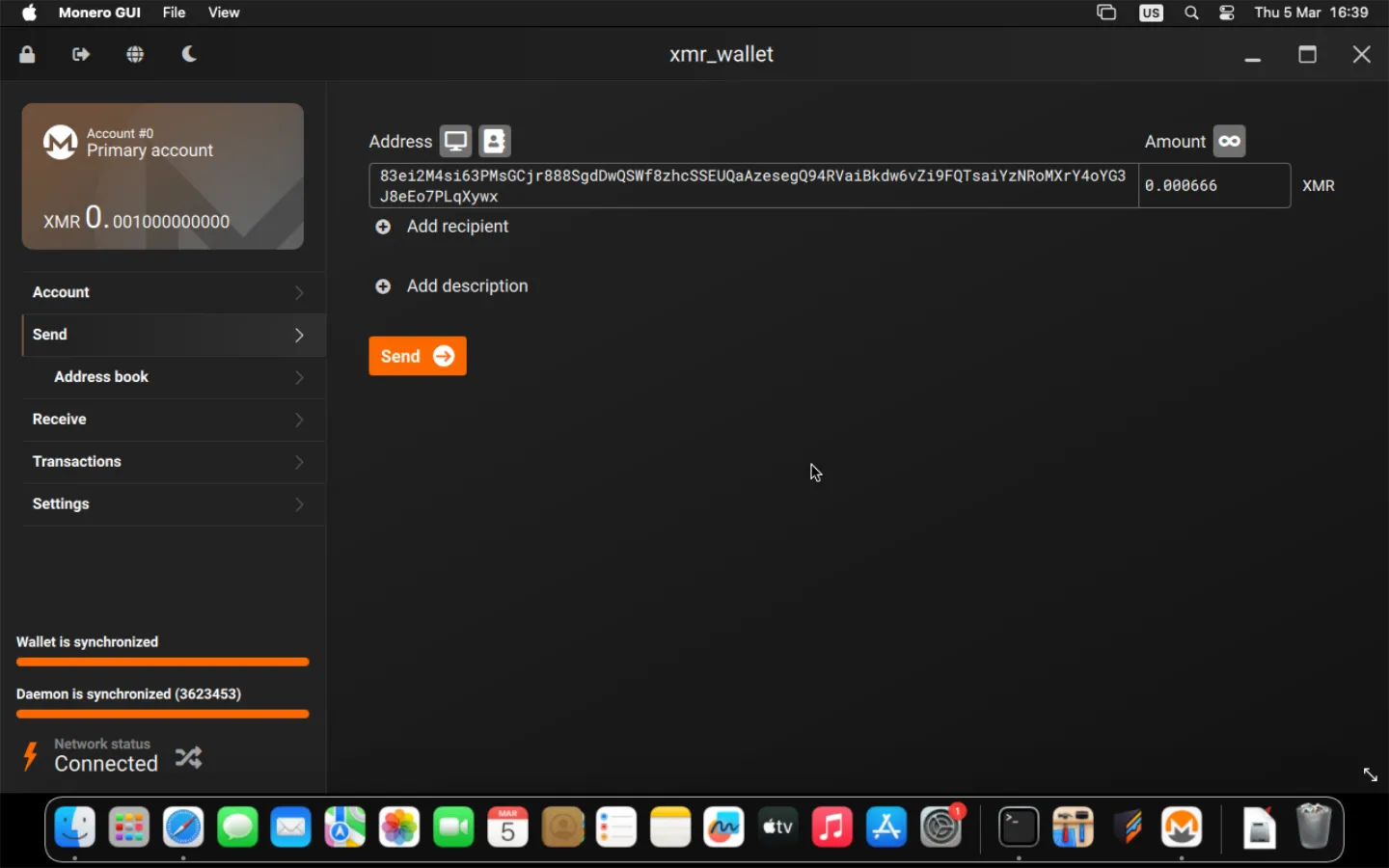
- To send funds, go to the Send tab. Under Address, paste the destination Monero address; under Amount, enter the amount and click Send.
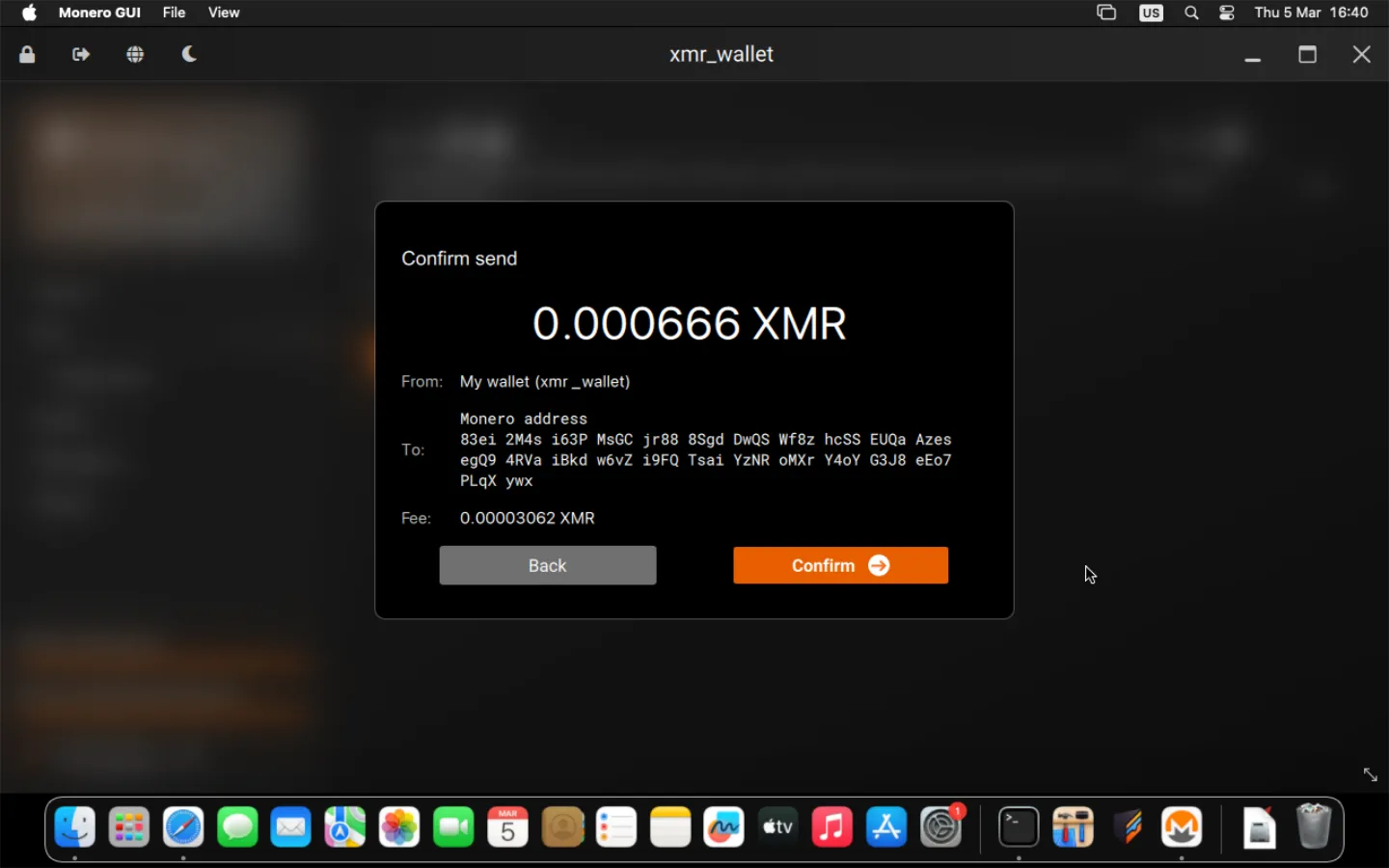
- After a few seconds, a confirmation window will be displayed. Before confirming the sending, make sure you have entered the correct Monero destination address. Verify the Fee amount; it should be a few cents. After verifying the transaction details, click Confirm.
WARNING: This action cannot be undone. Providing an incorrect address may result in loss of funds.
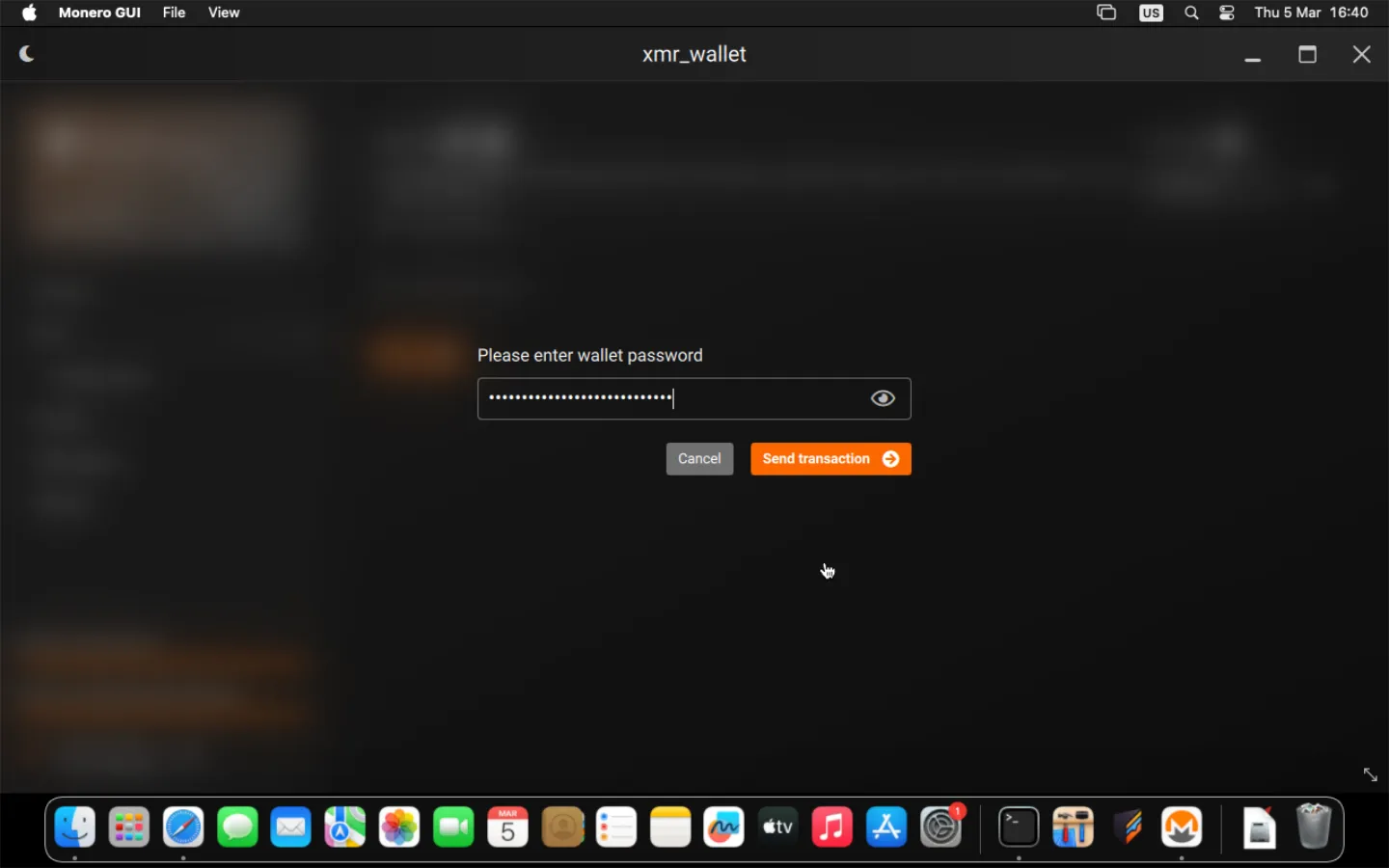
- Enter the password and click Send Transaction.
- A message will be displayed at the top of the screen informing you of the available balance. Wait for 10 confirmations from the Monero network before continuing to use your address after sending funds.