Guide to installing and using Feather Wallet software for macOS
Feather Wallet is a wallet for managing Monero cryptocurrency. The tutorial describes how to install and generate a wallet and send and receive funds.
Installation of Feather Wallet software #
- Download the software macOS (12 and higher) from the official Feather Wallet website.
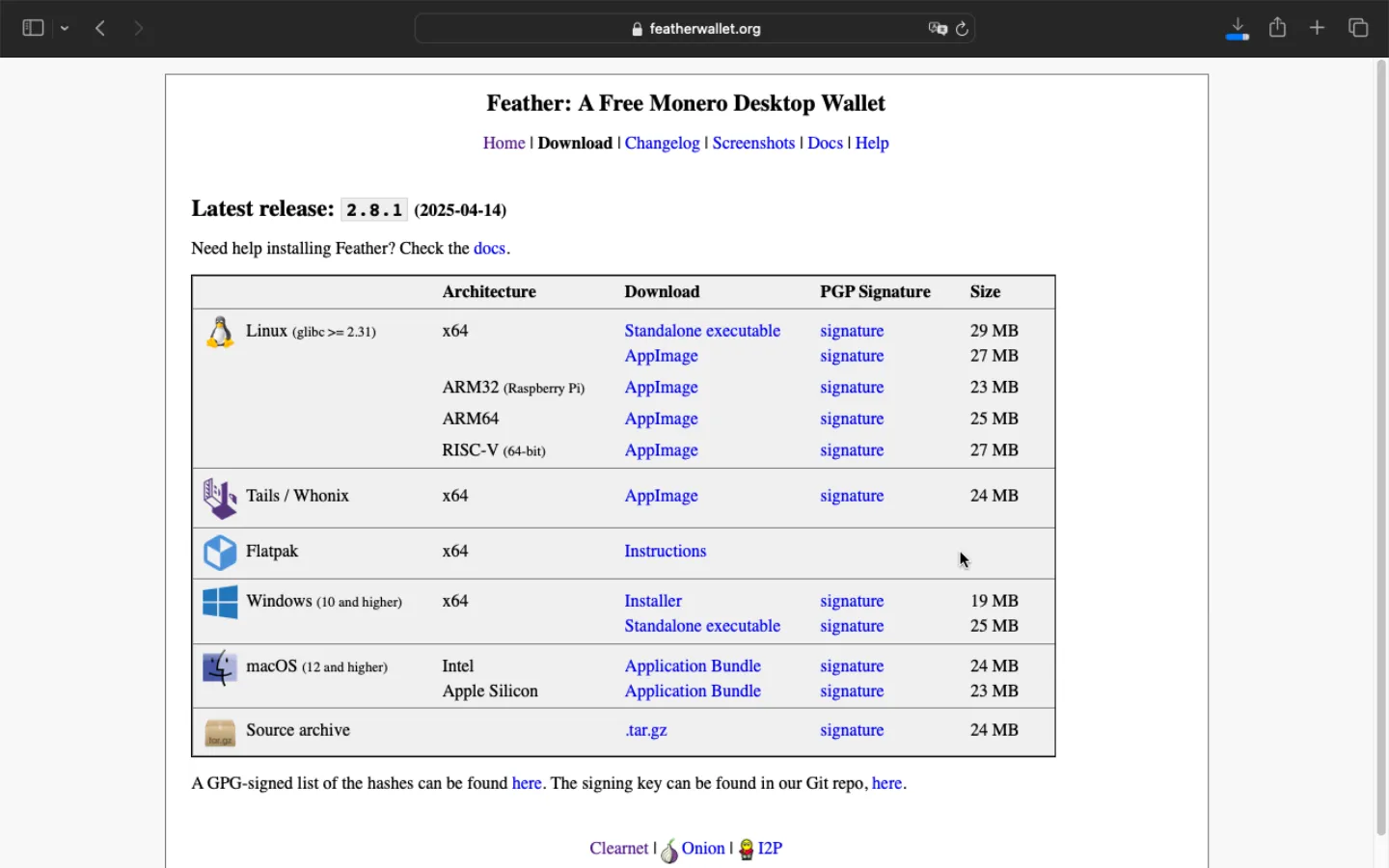
- Before running the installation, check the checksum of the software. Open the list of hashes with the button located at the end of the sentence “A GPG-signed list of hashes can be found here” under the table at the bottom of the page from which we downloaded the wallet.
In the terminal, type: shasum -a 256 [path to the .zip file downloaded in step 1] and press Enter. By default it will be located in /Users/
|
|
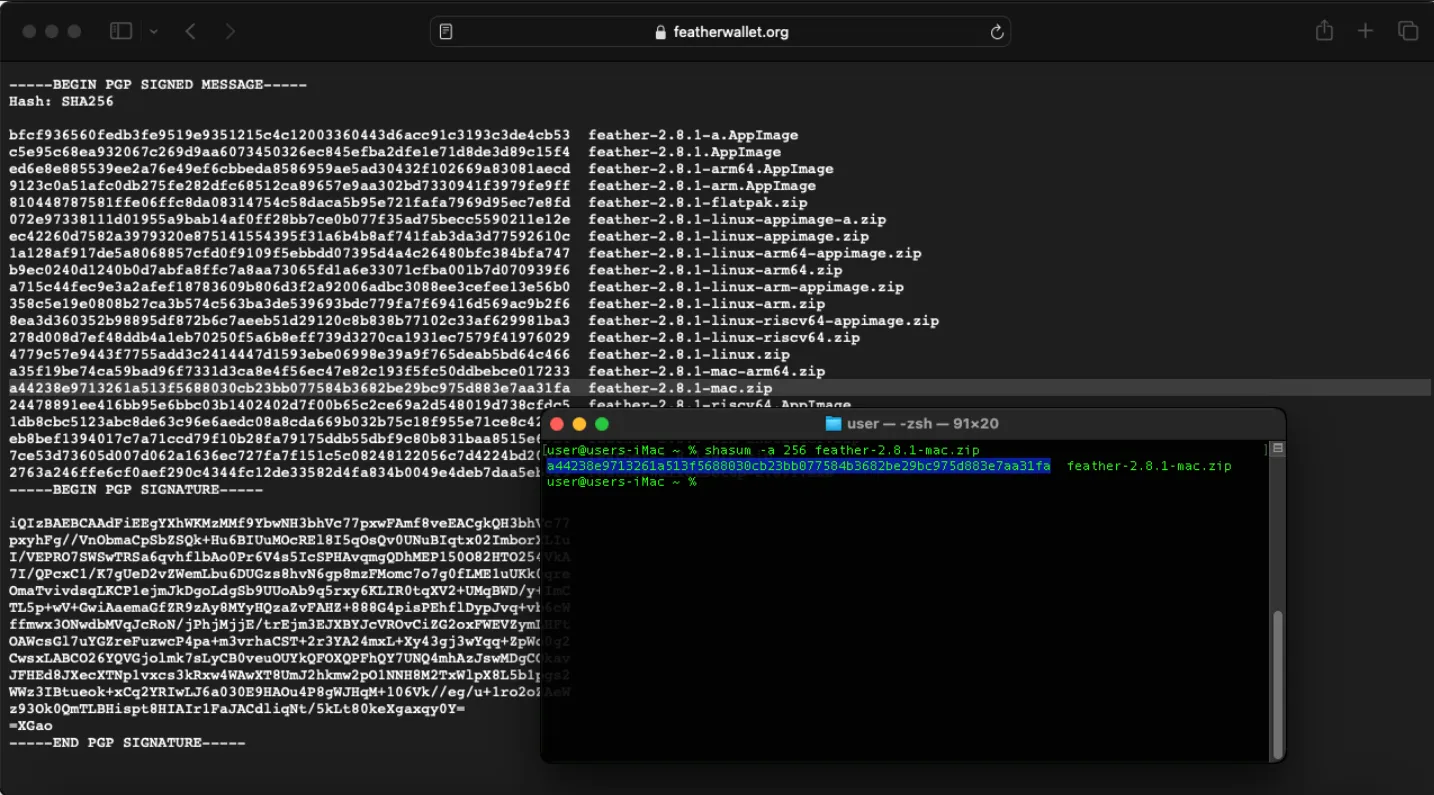
If the resulting sum agrees with the result given on the page appropriate for our software version, we can proceed further.
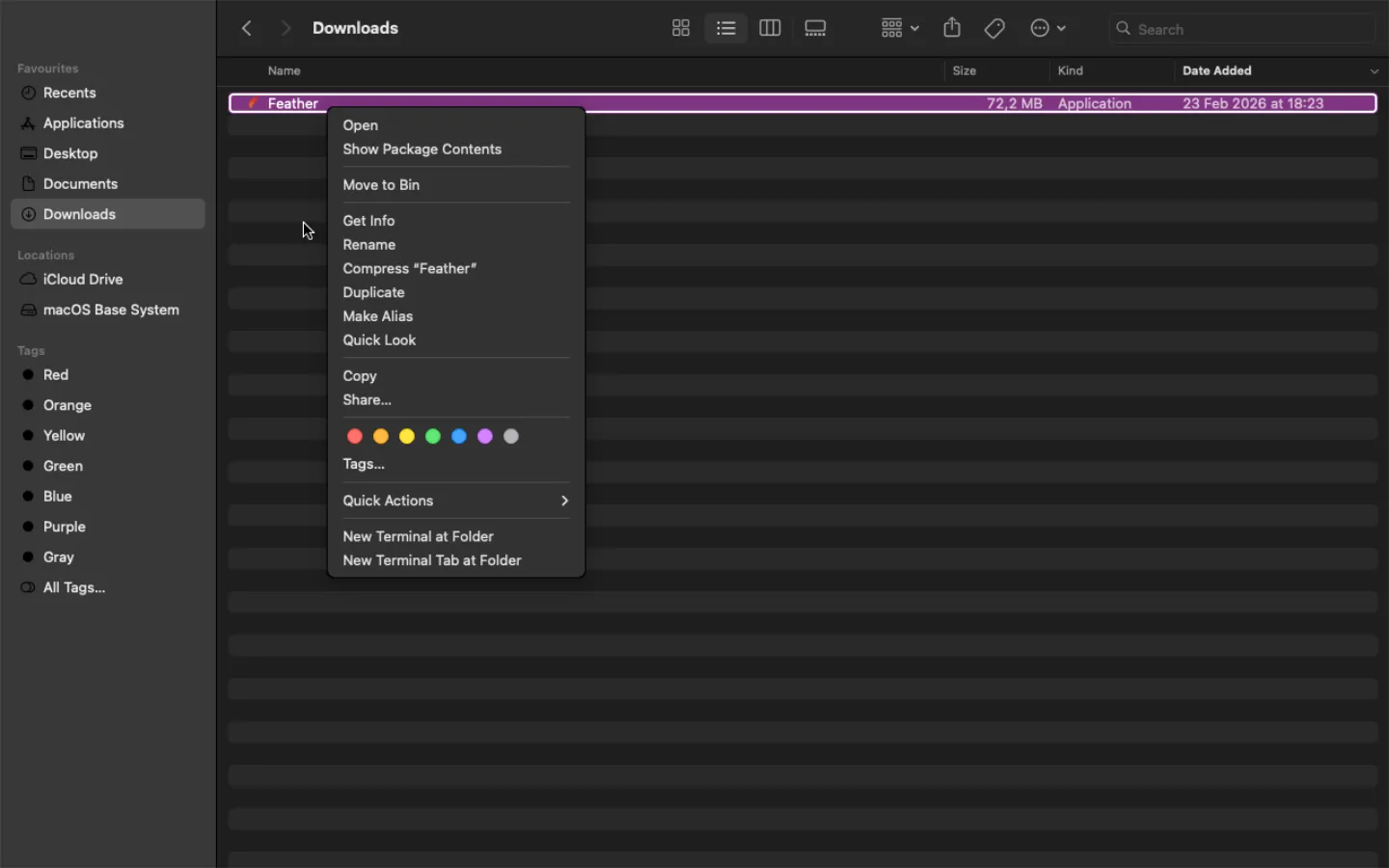
- Open the folder where the file is located, unzip it, and double-click to run.
Generating a wallet #
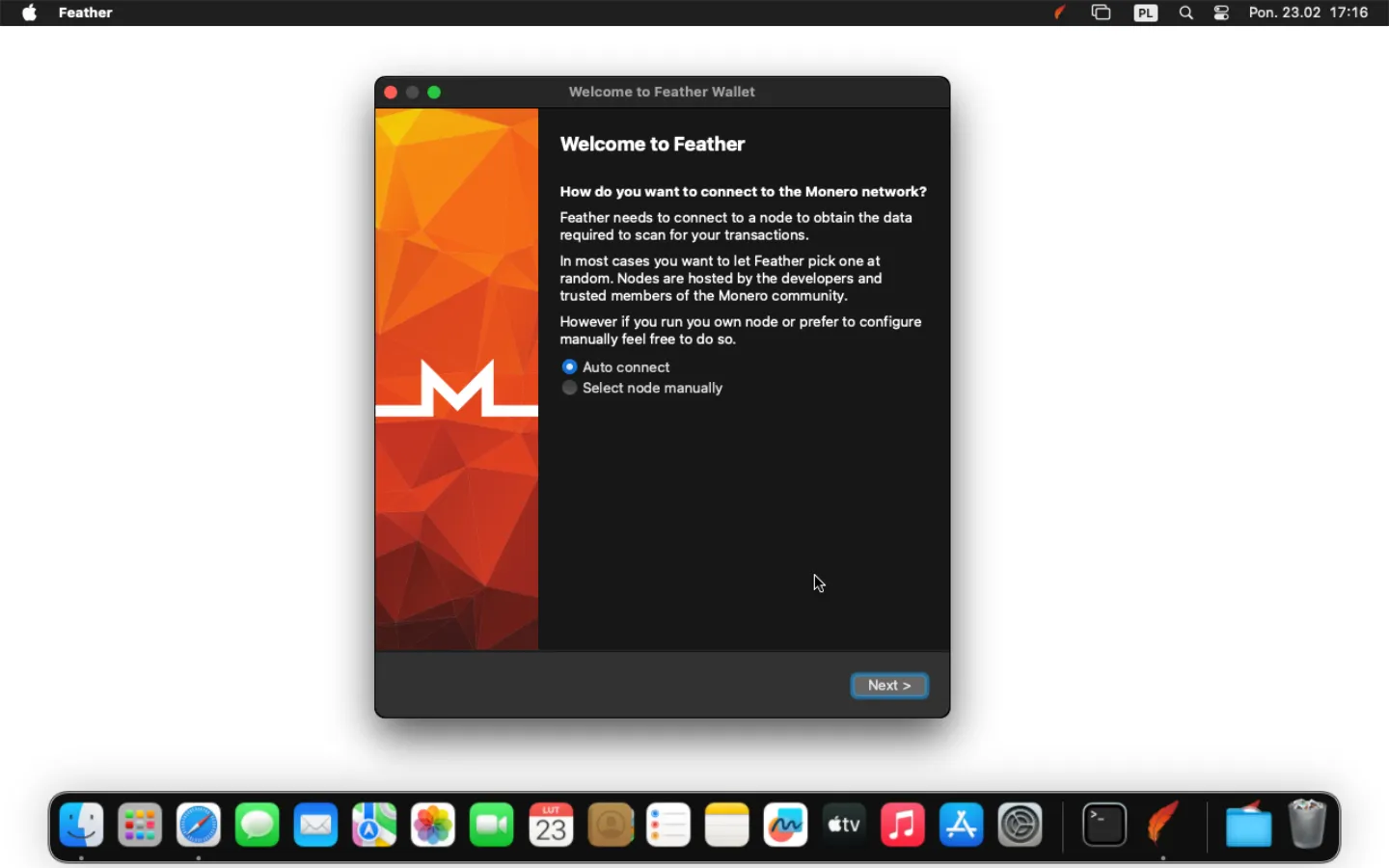
- After launching the downloaded application, click Next.
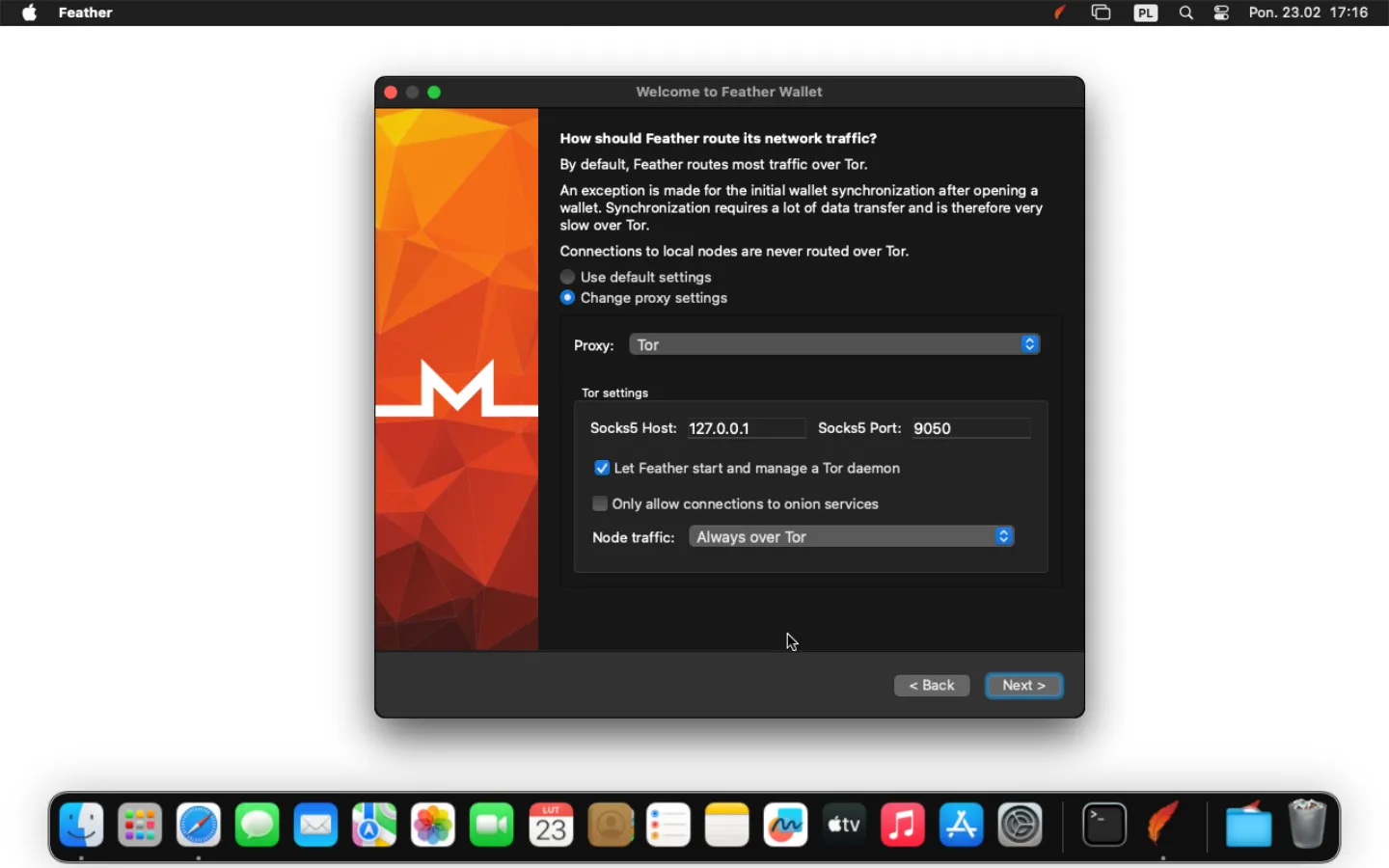
- Select Change proxy settings, choose Proxy → Tor, Node Traffic → Always over Tor, and click Next.
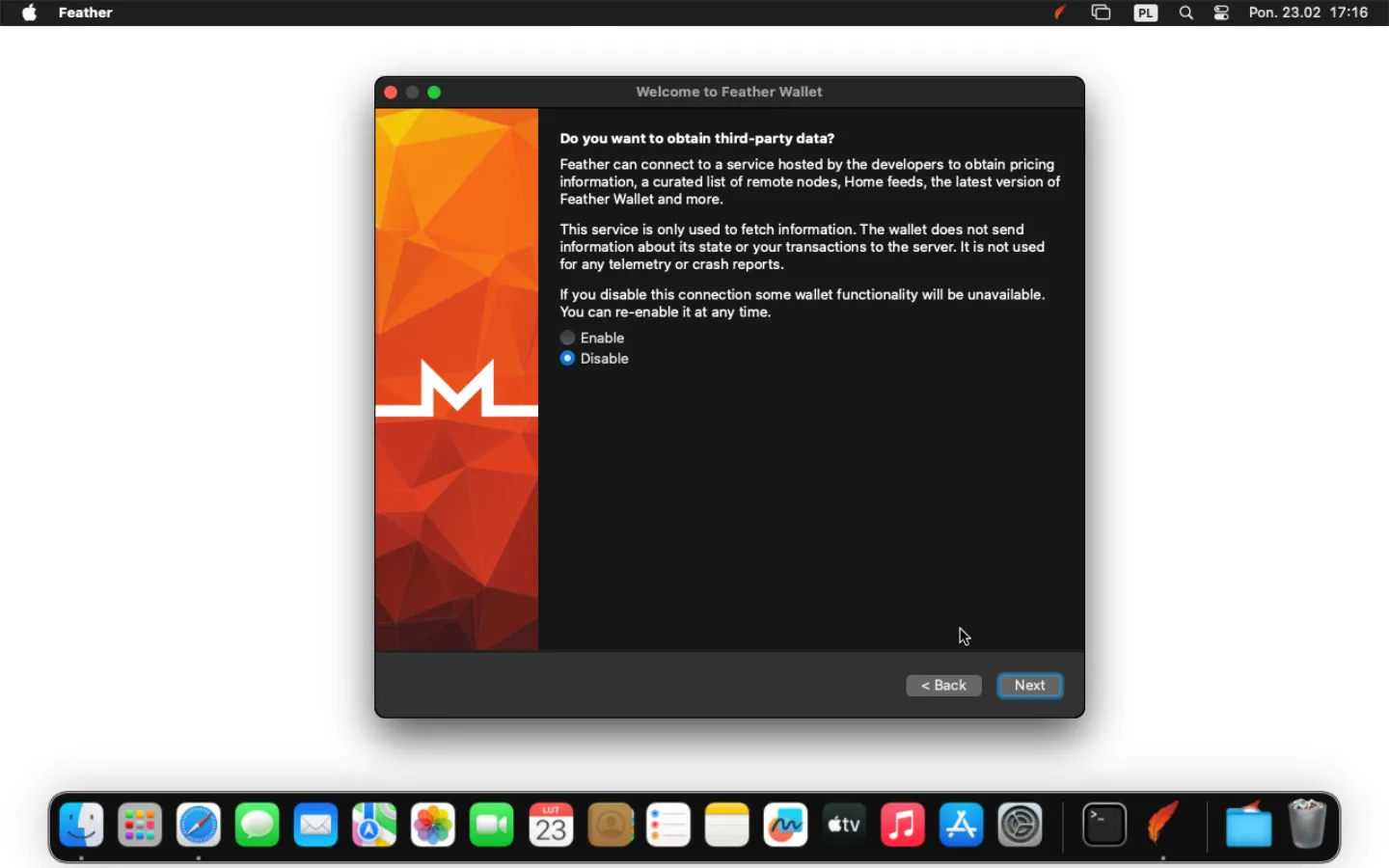
- Select Disable and click Next.
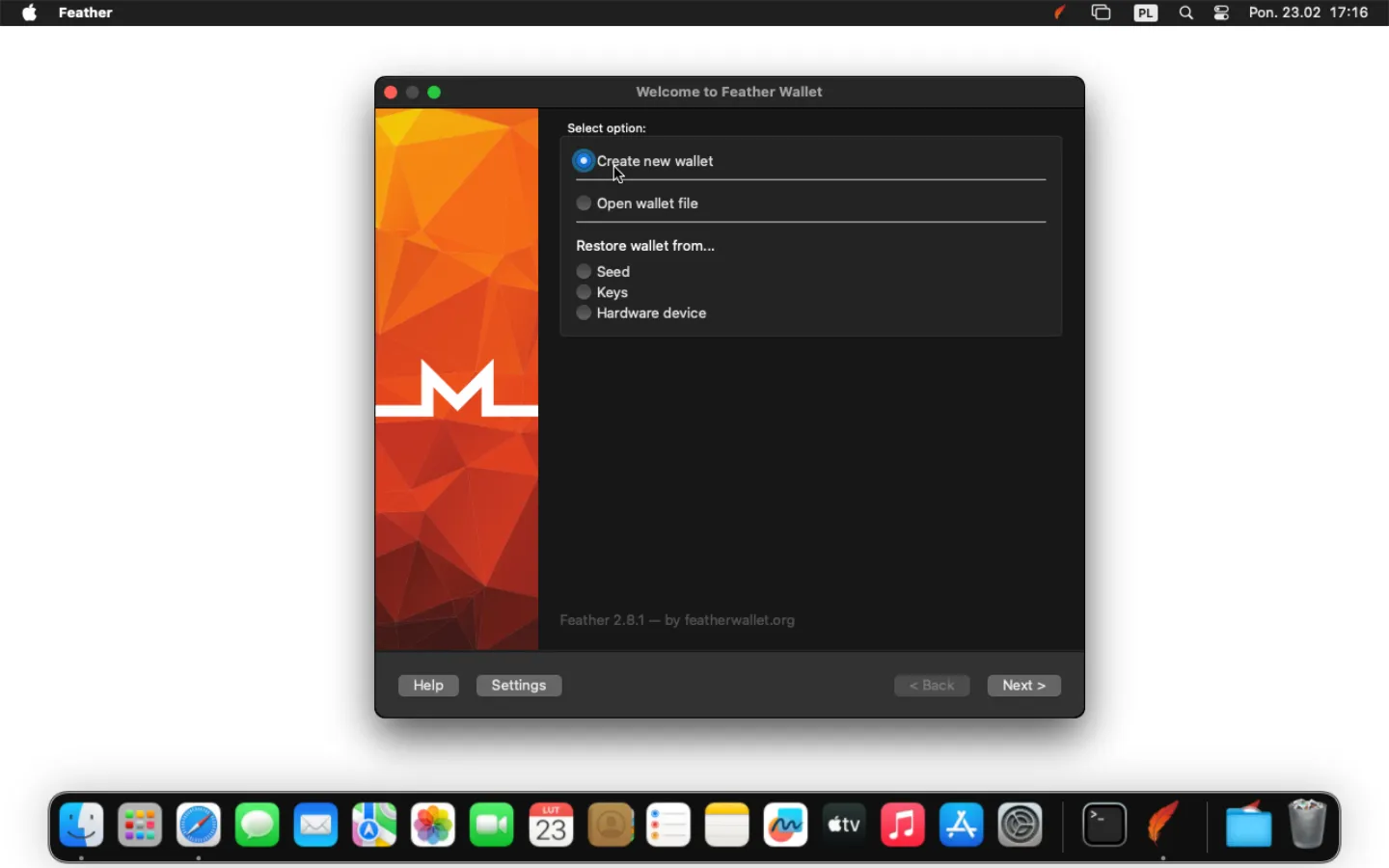
- Create a new wallet by selecting Create new wallet and click Next.
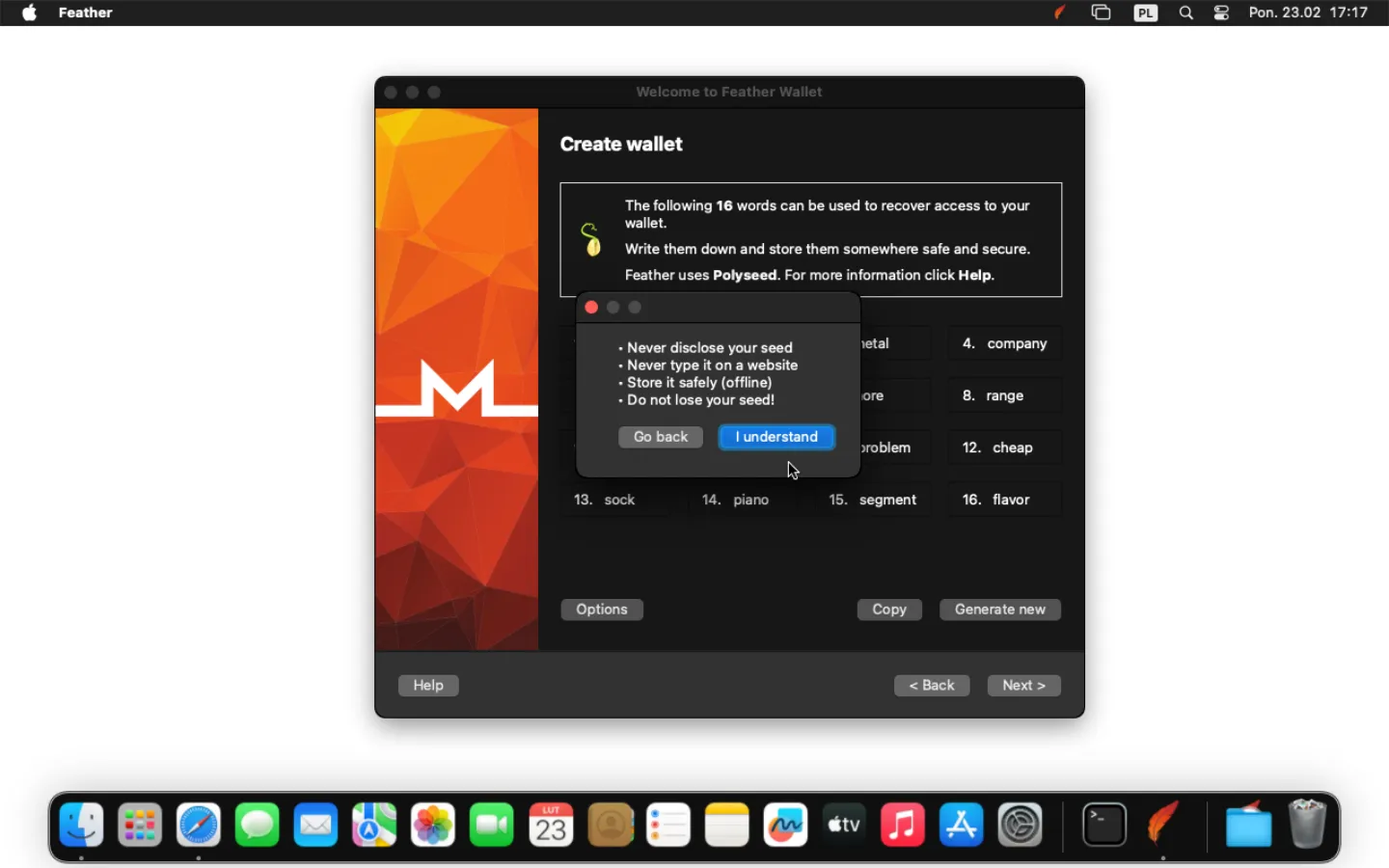
- The seed will be displayed; this is a security phrase. It should be saved in a safe place along with the date of wallet creation, for example, on an external USB drive encrypted with Veracrypt, Truecrypt, or LUKS. If recovery is required, you will be asked to enter the security phrase to recover the wallet along with its creation date. The creation date is required to retrieve the appropriate number of blocks from the Monero network. Providing too late a date during recovery may result in an incorrect amount of funds displayed in the wallet.
Click Next, then I understand, provide the required information, and click Next.
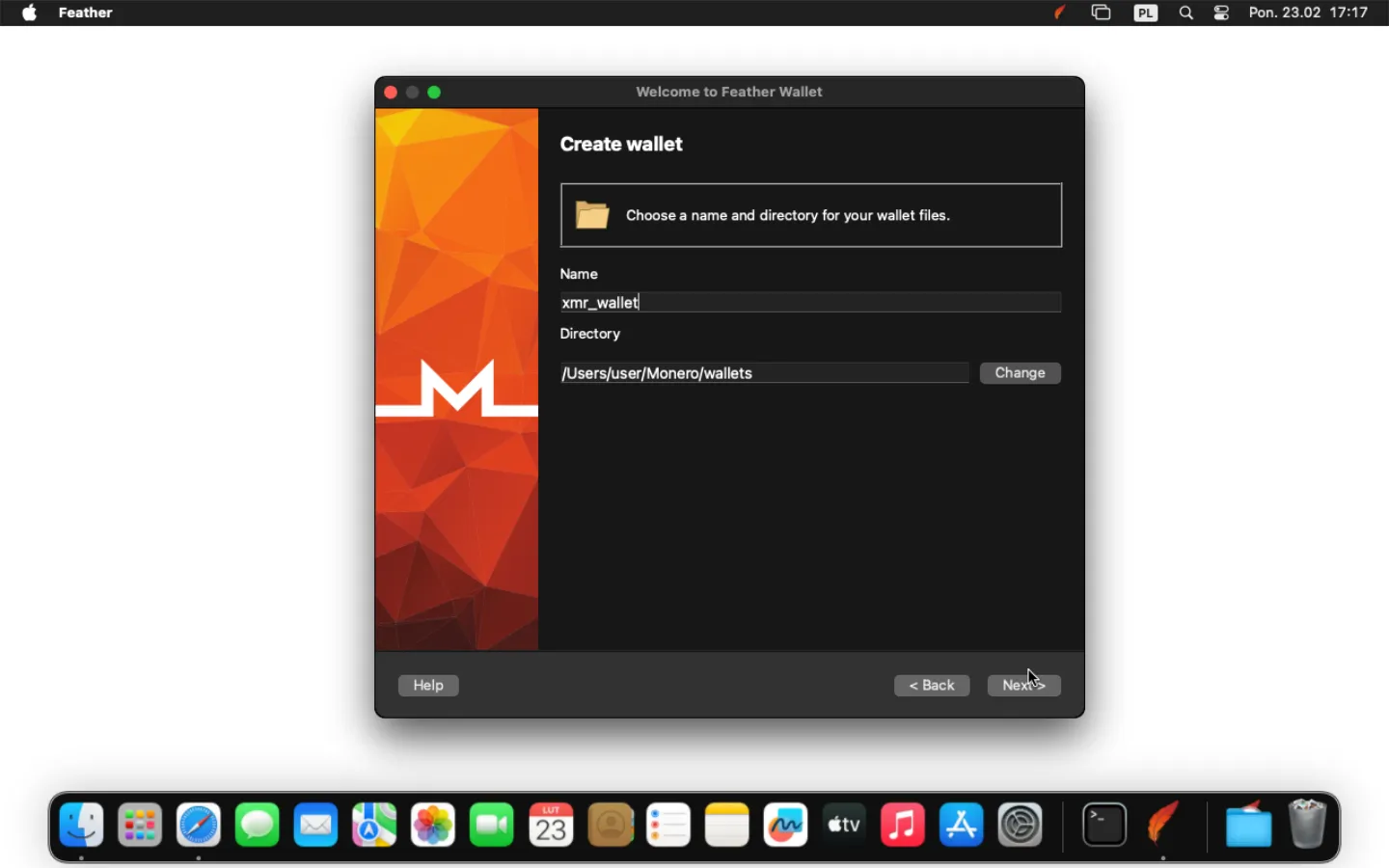
- Choose the name and path to save the wallet (you can leave the default) and click Next.
- After the first run, wait for the node to retrieve the information, which will be announced by Synchronized in the lower left corner.
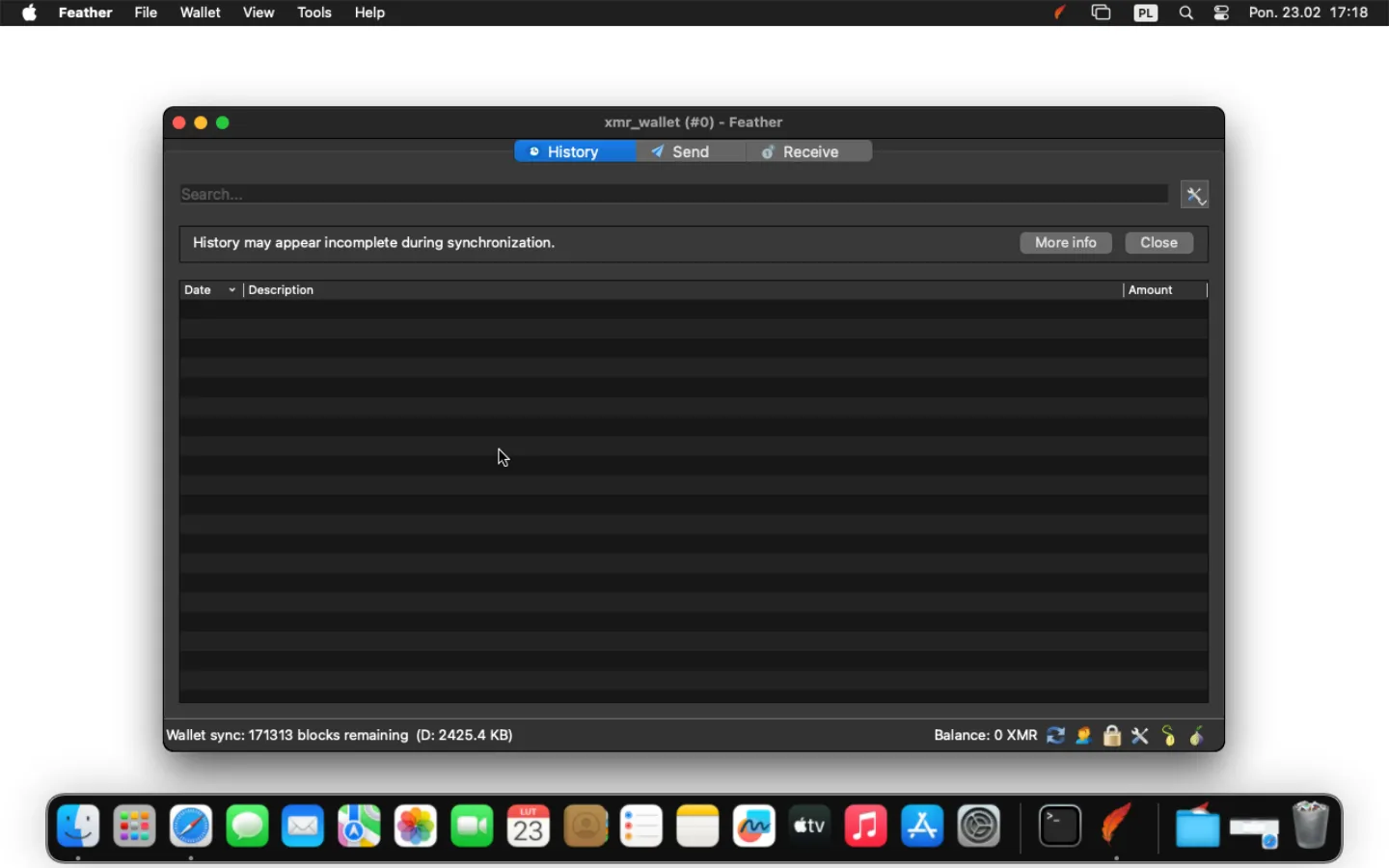
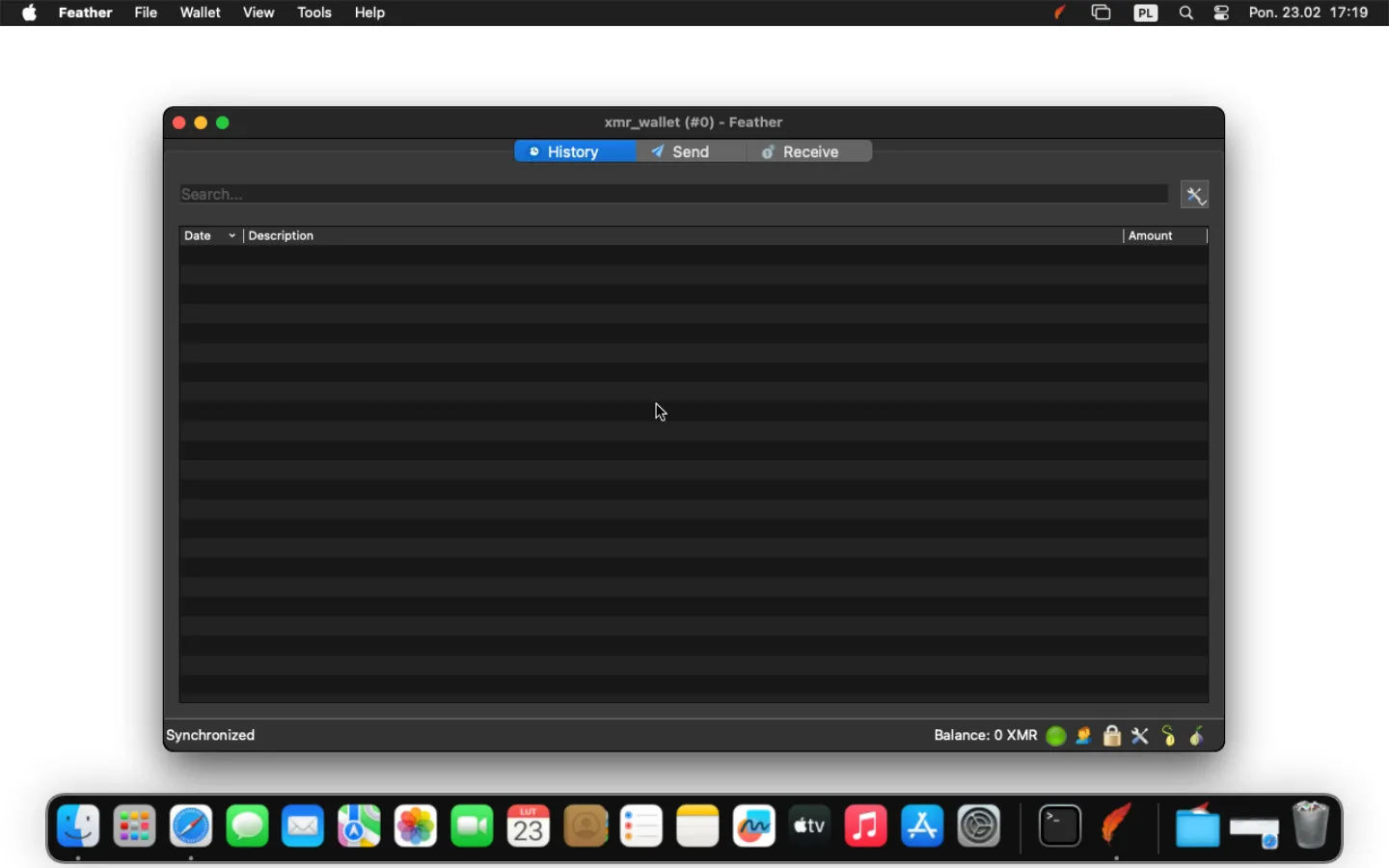
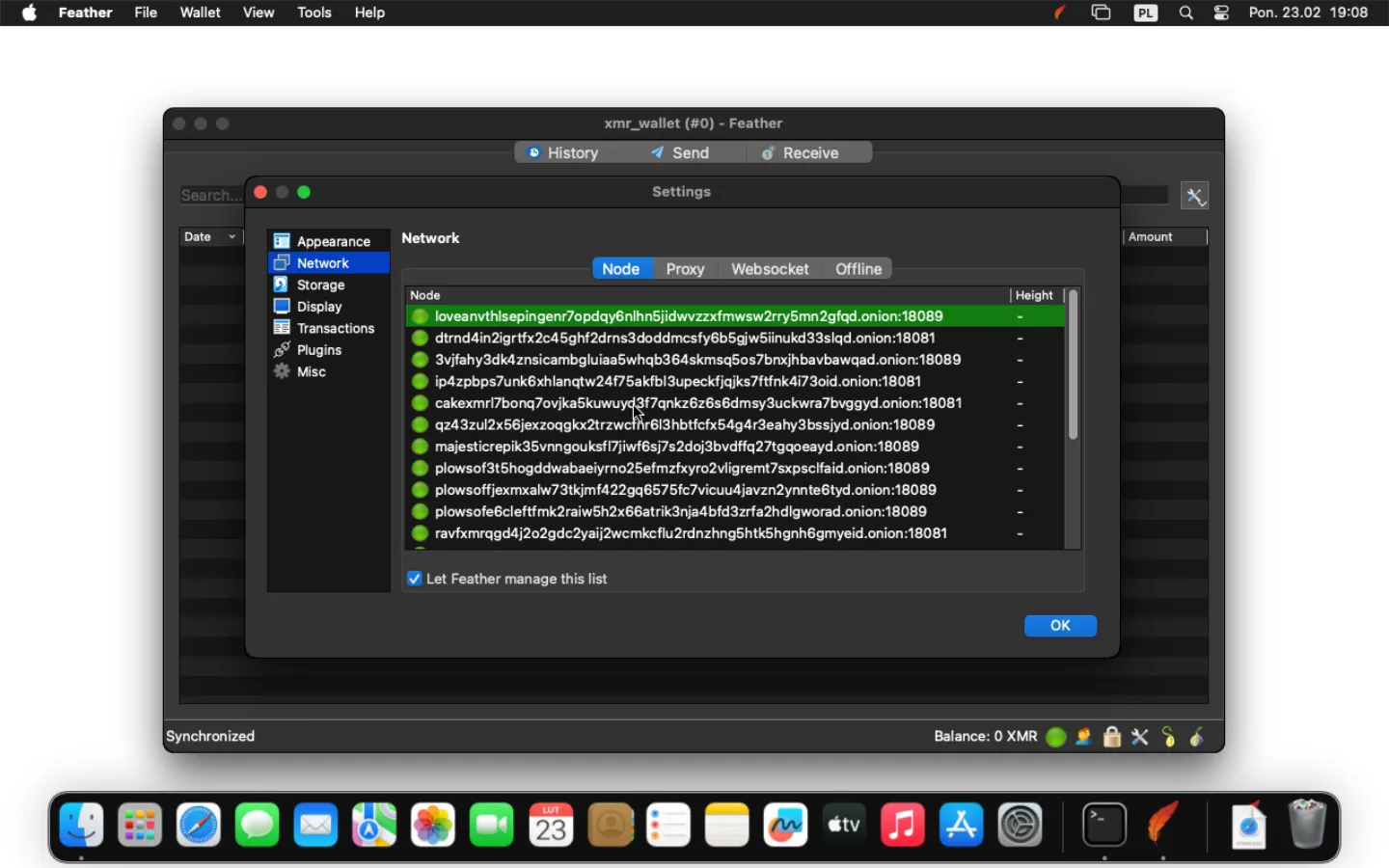
- If you have connection problems, click the connection status icon (green 🟢, blue 🔵 or red 🔴) located in the bottom-right corner of the screen next to the Balance status. Then select the Network → Node tab. A list of remote nodes will appear; these are required to retrieve necessary information from the Monero network. To change the node, double-click the node with a green 🟢 icon (indicating it is currently available), then click OK and wait for synchronization.
Receiving funds #
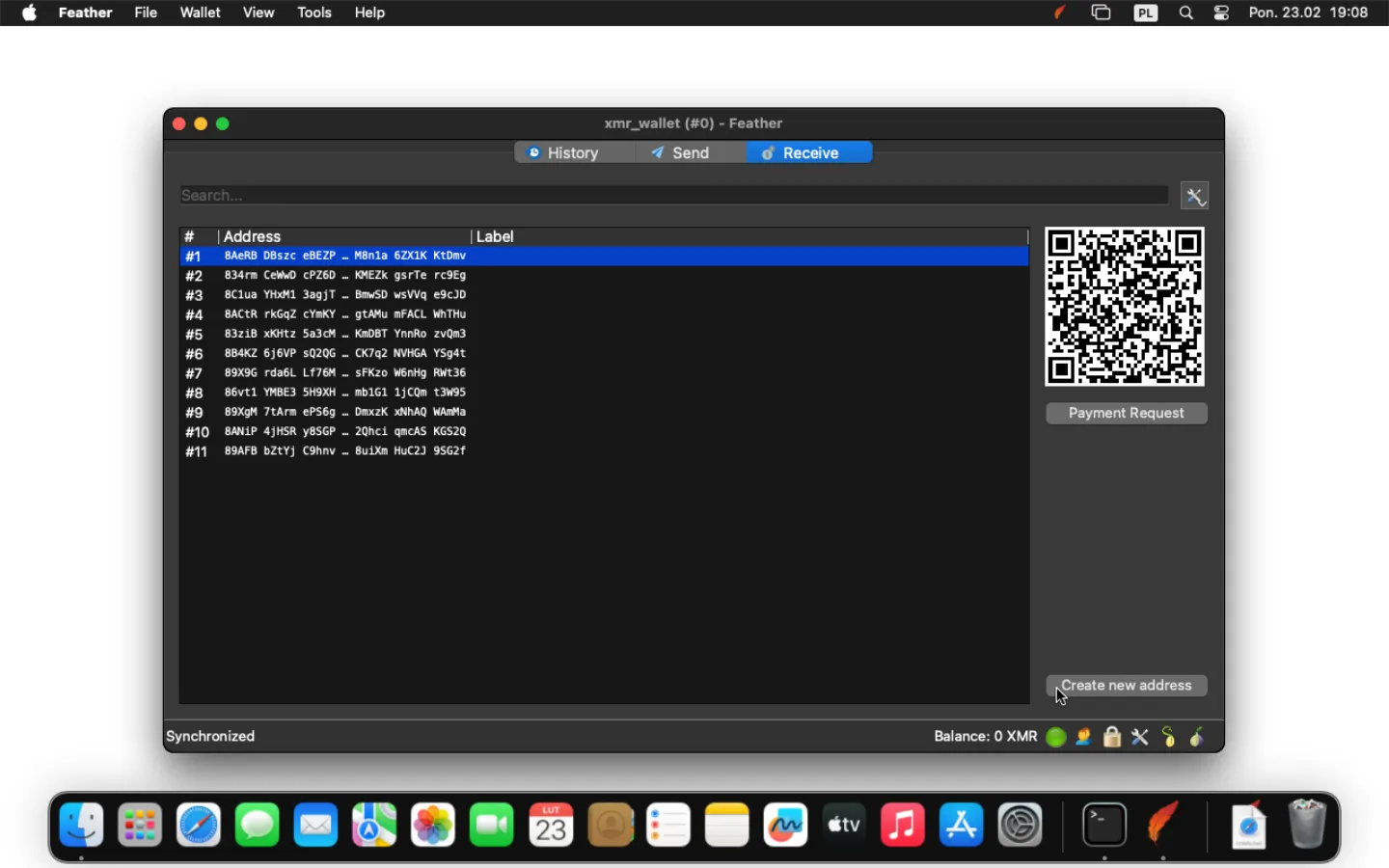
- Go to the Receive tab. There will be a list of your Monero addresses used to receive funds. You can generate new subaddresses by clicking the Create new address button. It is a good idea to use subaddresses once and generate a new one for each transaction, so that you can take maximum care of your funds’ privacy. All incoming transactions to any of the subaddresses add up, and their balance is common to the entire account.
-
To receive funds, copy your address by right-clicking on it and selecting Copy address. Then paste it in the place where you want to receive the funds, for example, in the appropriate section of the exchange, or by sending it to the appropriate person.
-
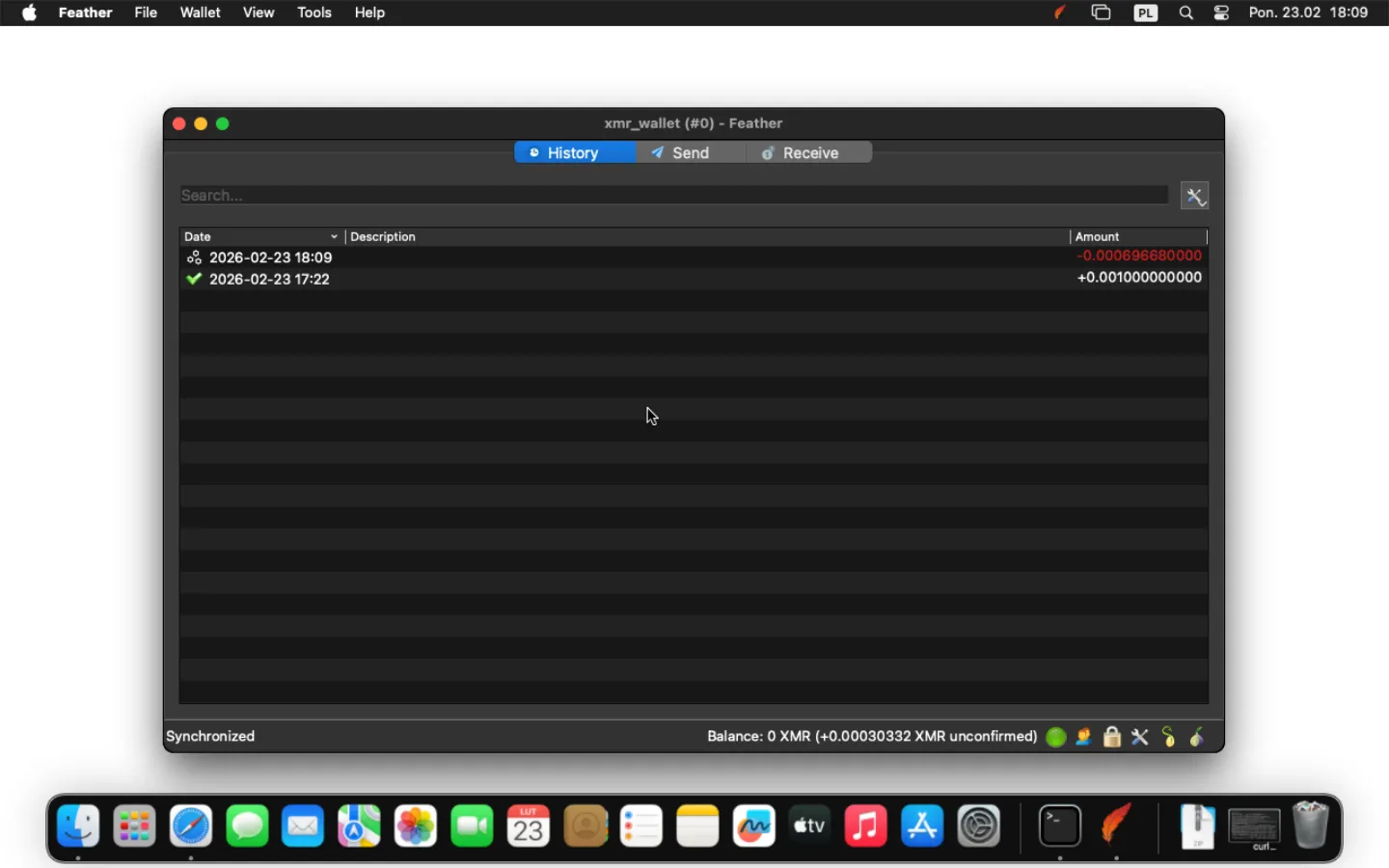
After receiving the funds, go to the History tab. You will see the entire history of funds received and sent.
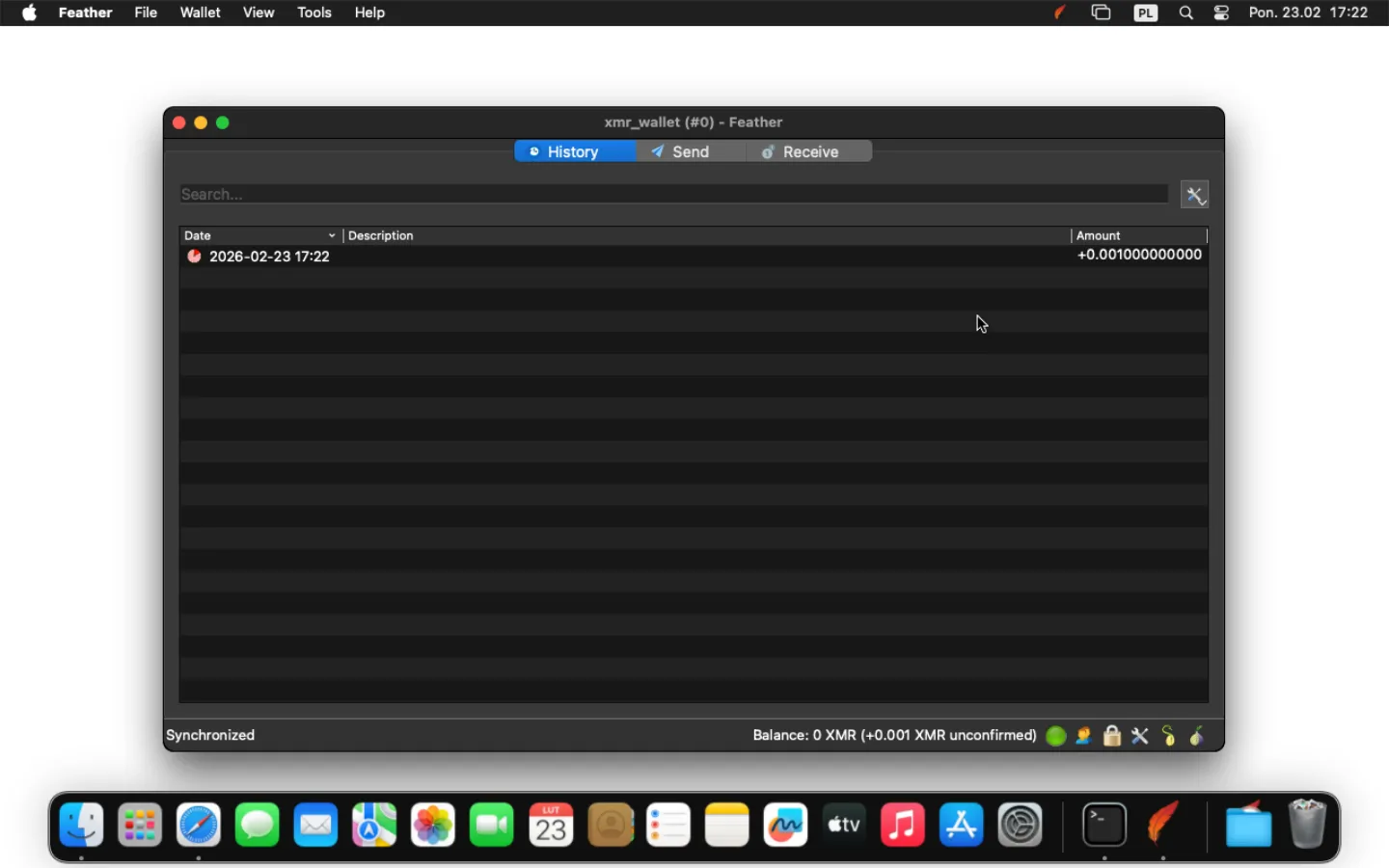
- You must wait for 10 confirmations from the Monero network before sending the received funds. This will be announced by the green mark displayed next to the transaction, and the Balance status will no longer show the note “unconfirmed”.
Sending funds #
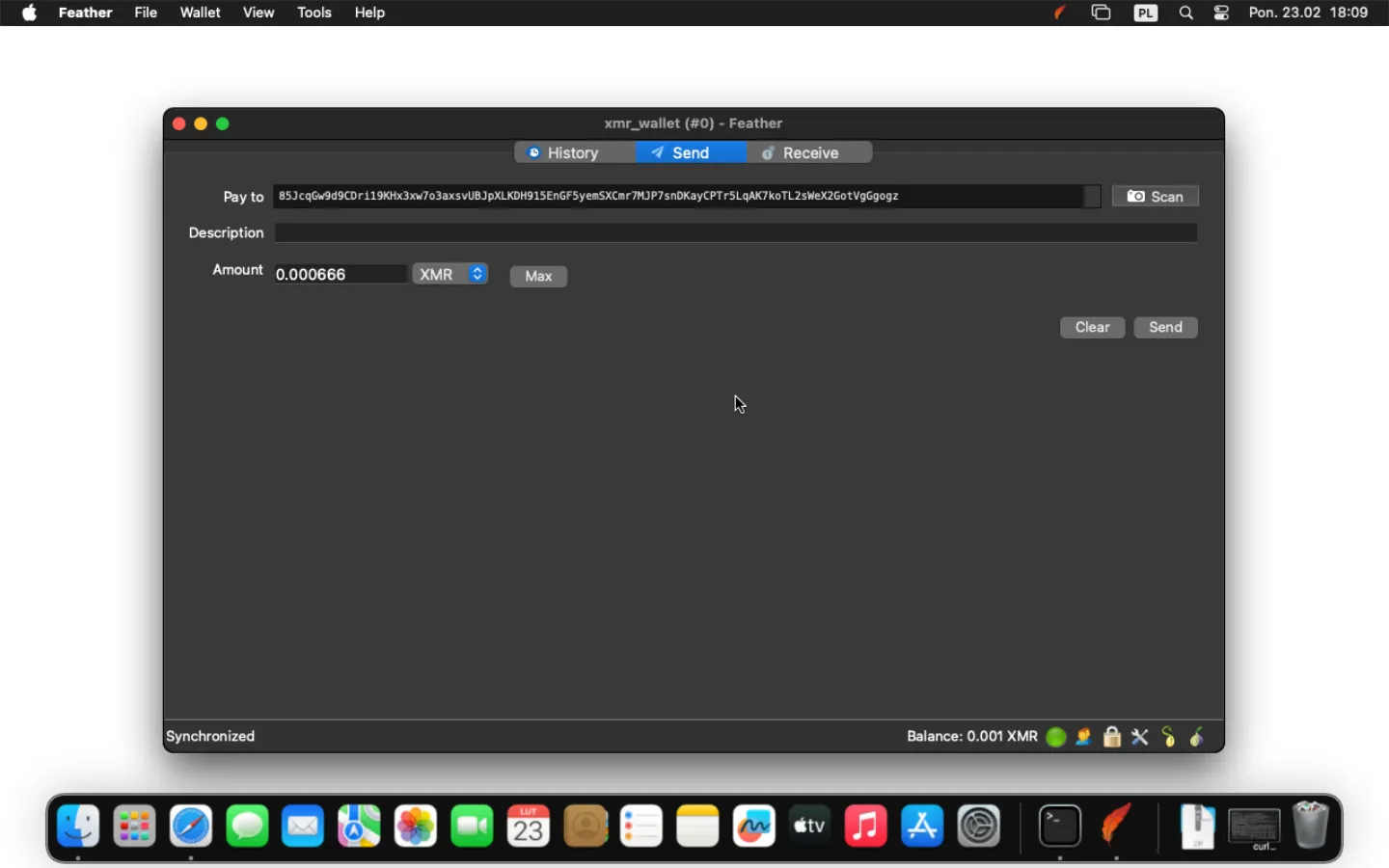
- To send funds, go to the Send tab. Under Pay to, paste the destination Monero address; under Amount, enter the amount and click Send. After a few seconds, a confirmation window will appear. Before confirming the sending, make sure you have entered the correct Monero destination address. Verify the Fee amount (transaction fee); it should be a few cents.
WARNING: This action cannot be undone. Providing an incorrect address may result in loss of funds.
After checking the transaction details, click the Send button.
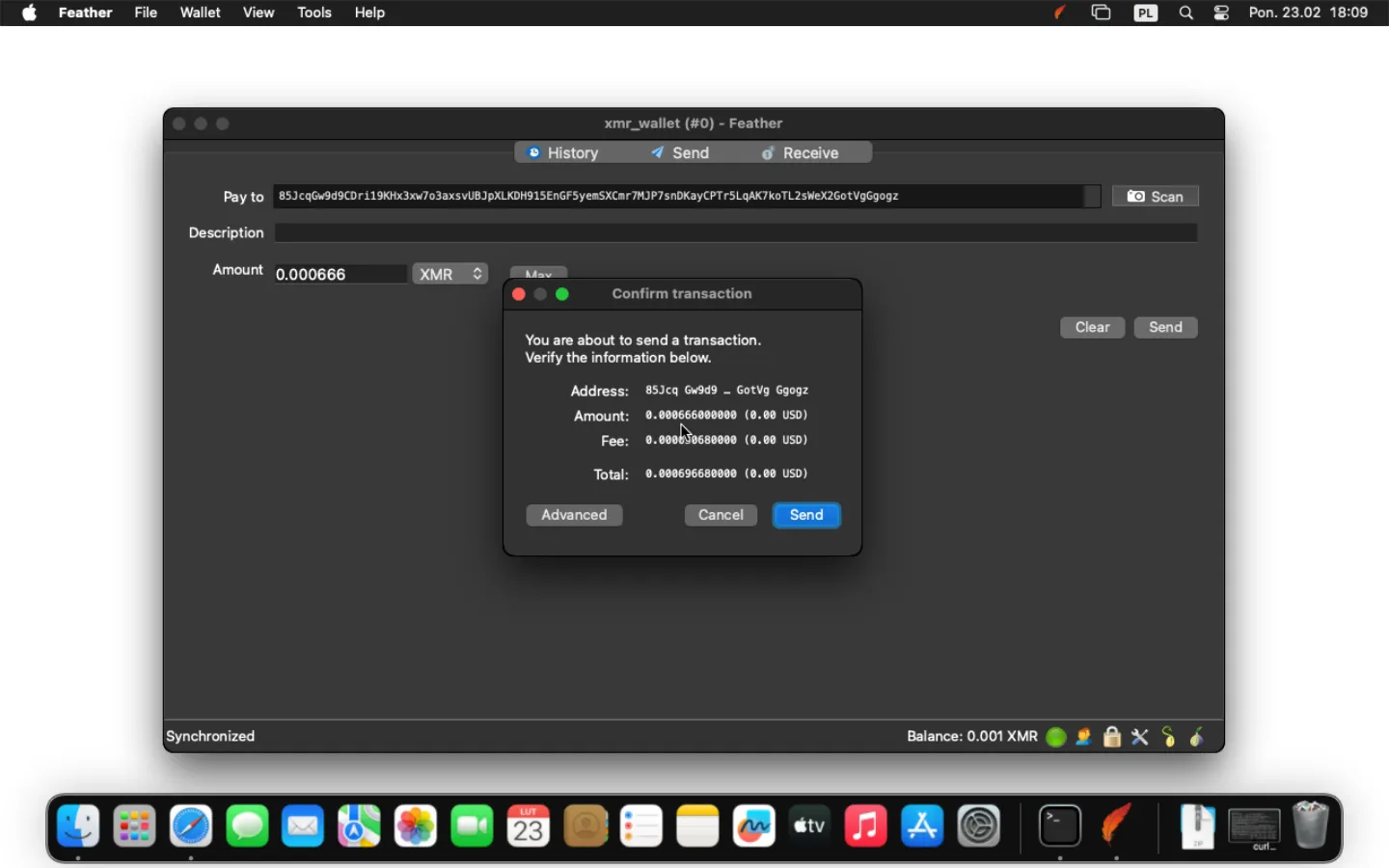
- Wait for 10 confirmations from the Monero network before continuing to use the subaddress after sending funds. This will be announced by a green mark next to the transaction, and the caption “Unconfirmed” disappears from the lower right corner of the screen, shown in the image below next to the Balance caption.