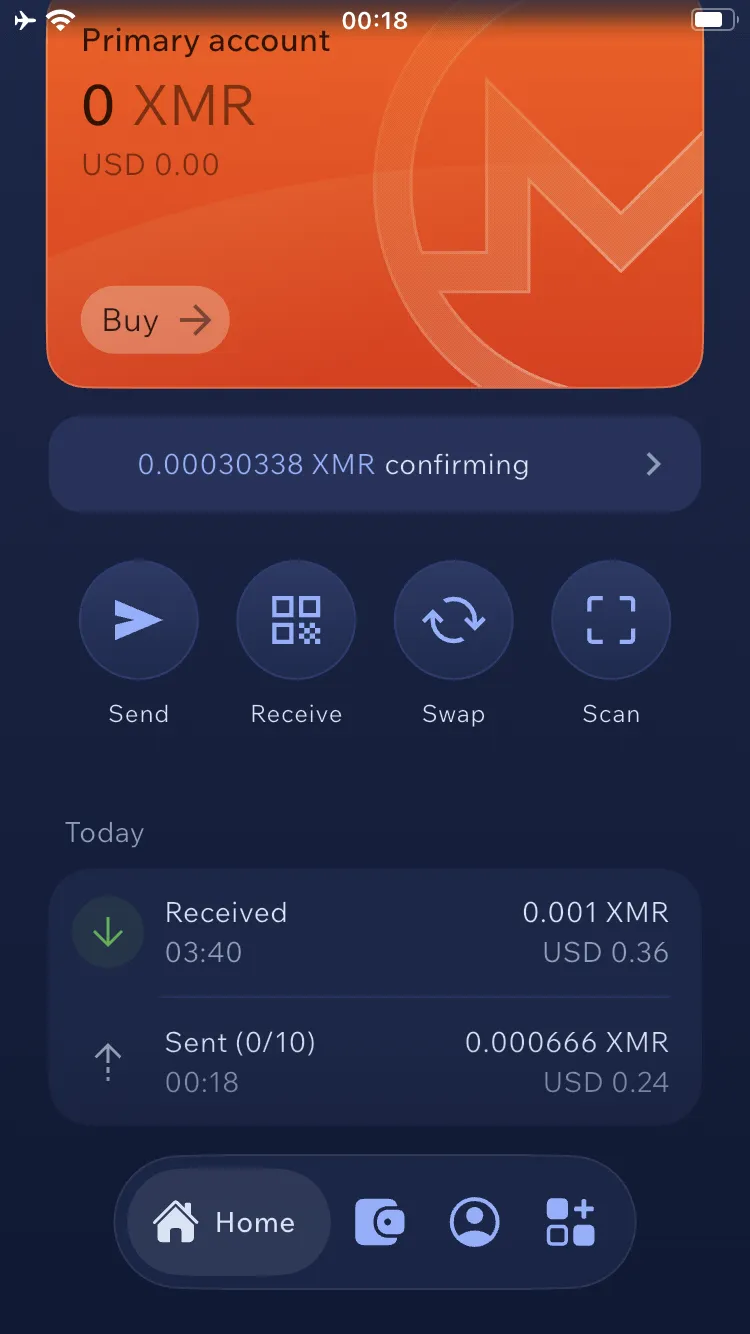
Cake Wallet software installation and operation guide for iOS
Stack Wallet is a wallet for managing Monero cryptocurrency. The tutorial describes how to install and generate a wallet and send and receive funds.
Installation of Cake Wallet app #
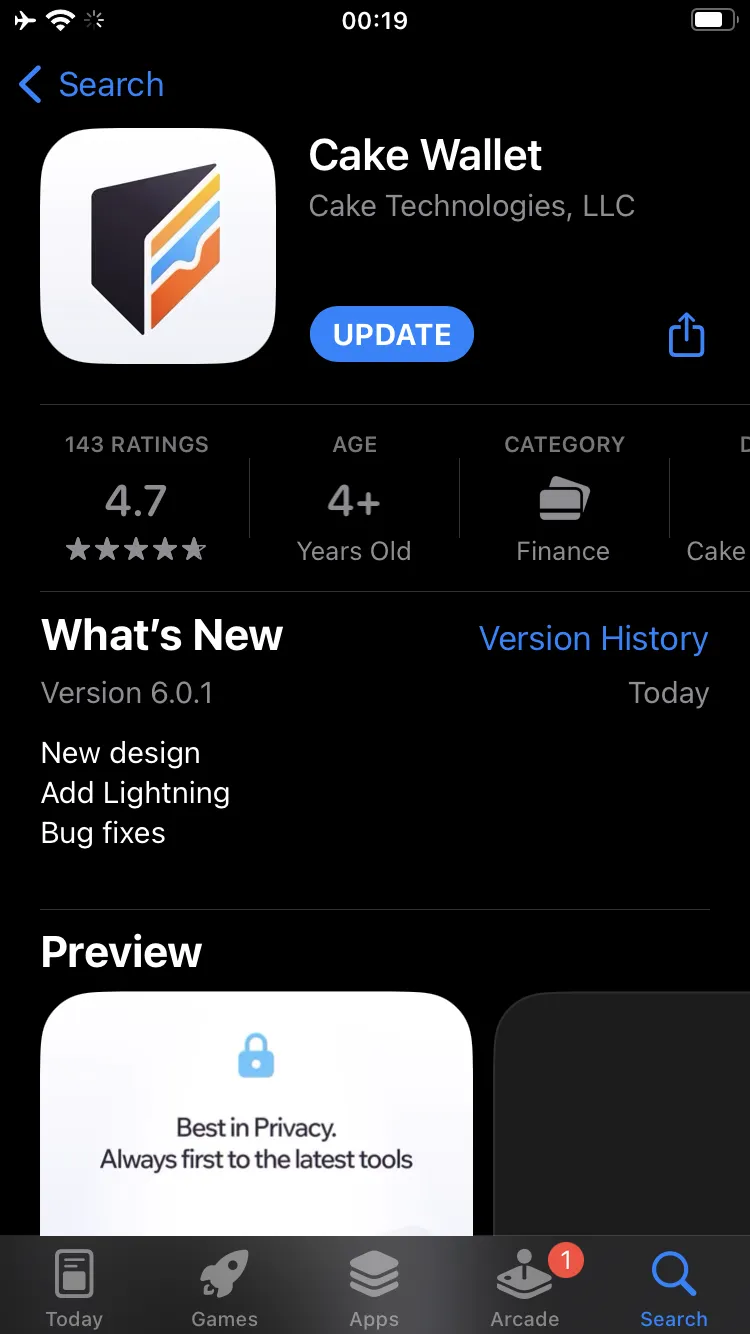
- Download the software from the App Store.
Generating a wallet #
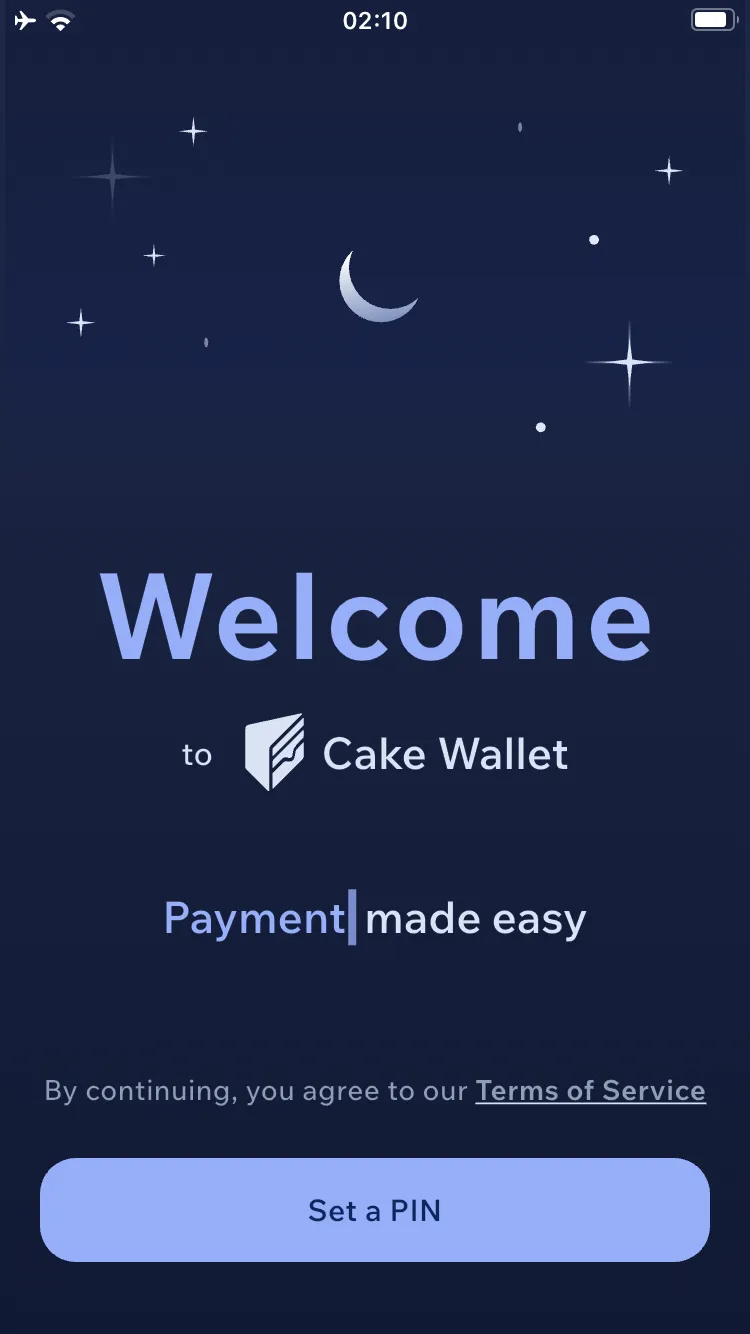
- Start the program, press Set a PIN and then create a PIN for the application.
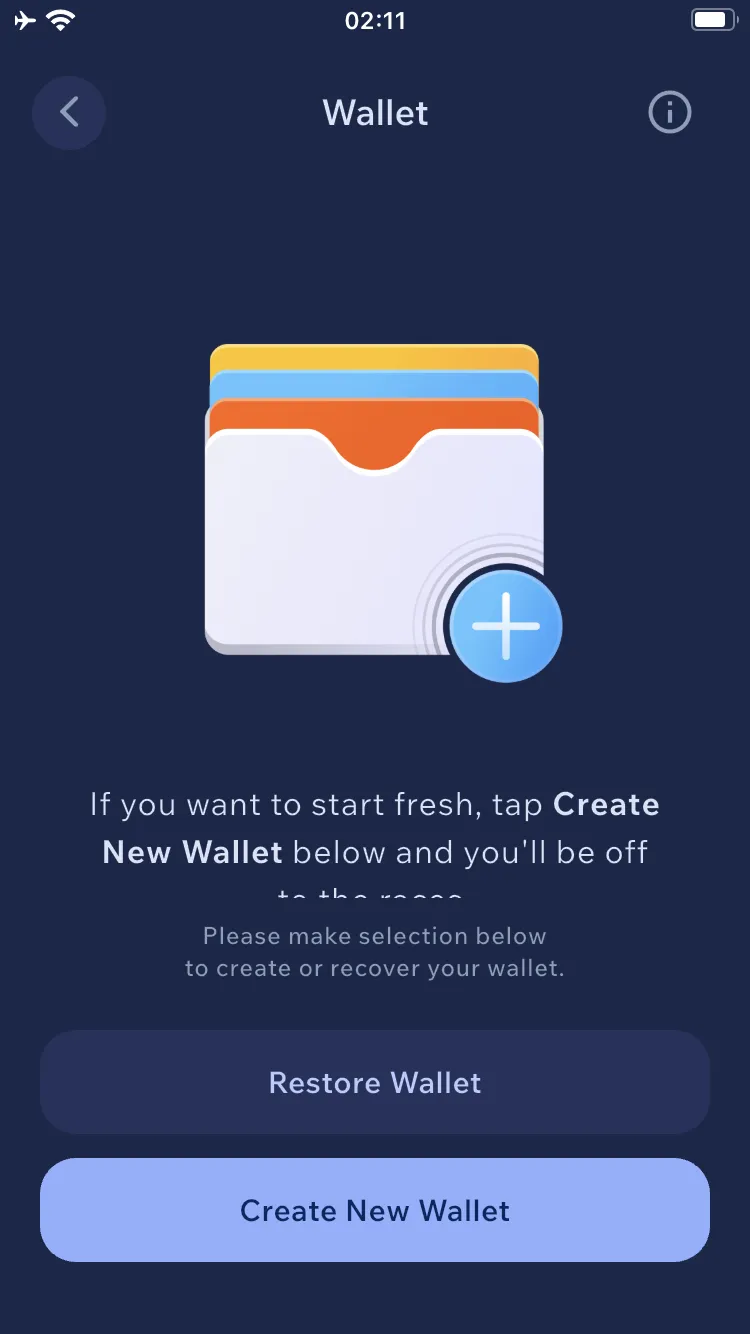
- Select Create new wallet.
- Select Monero (XMR).
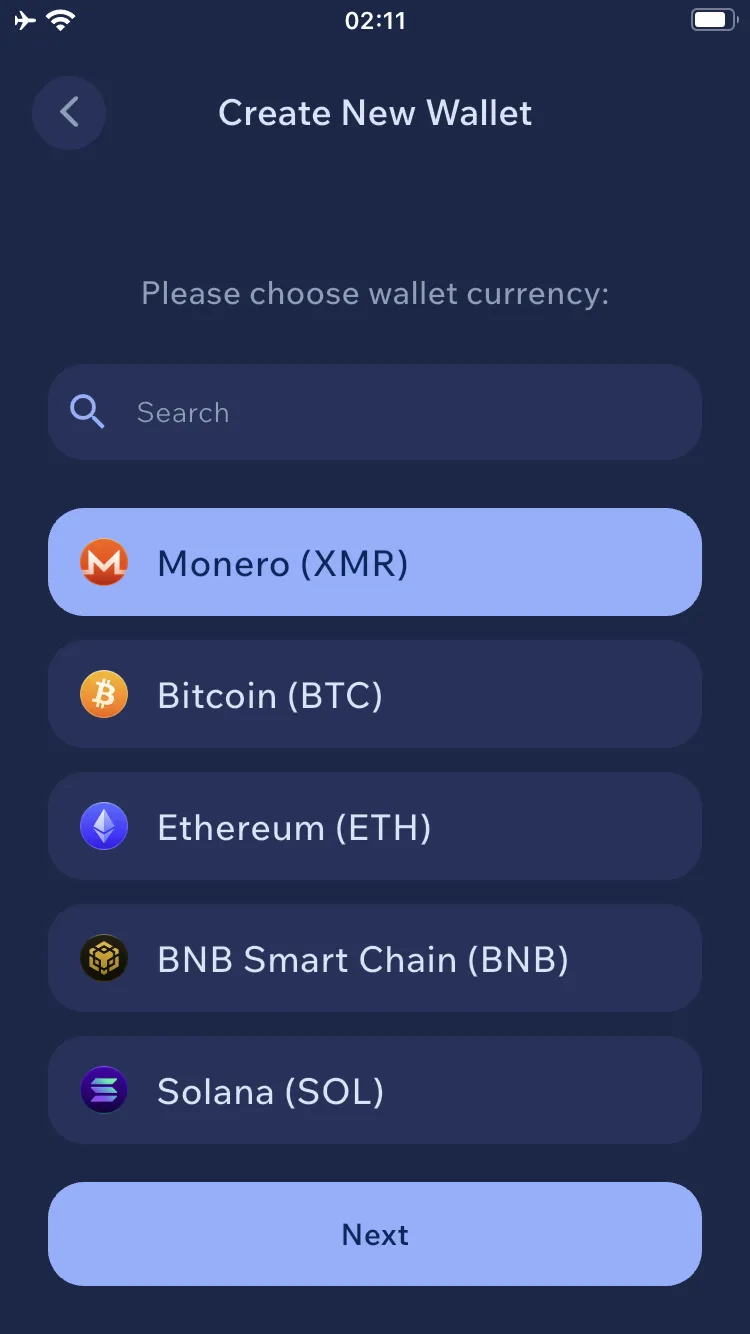
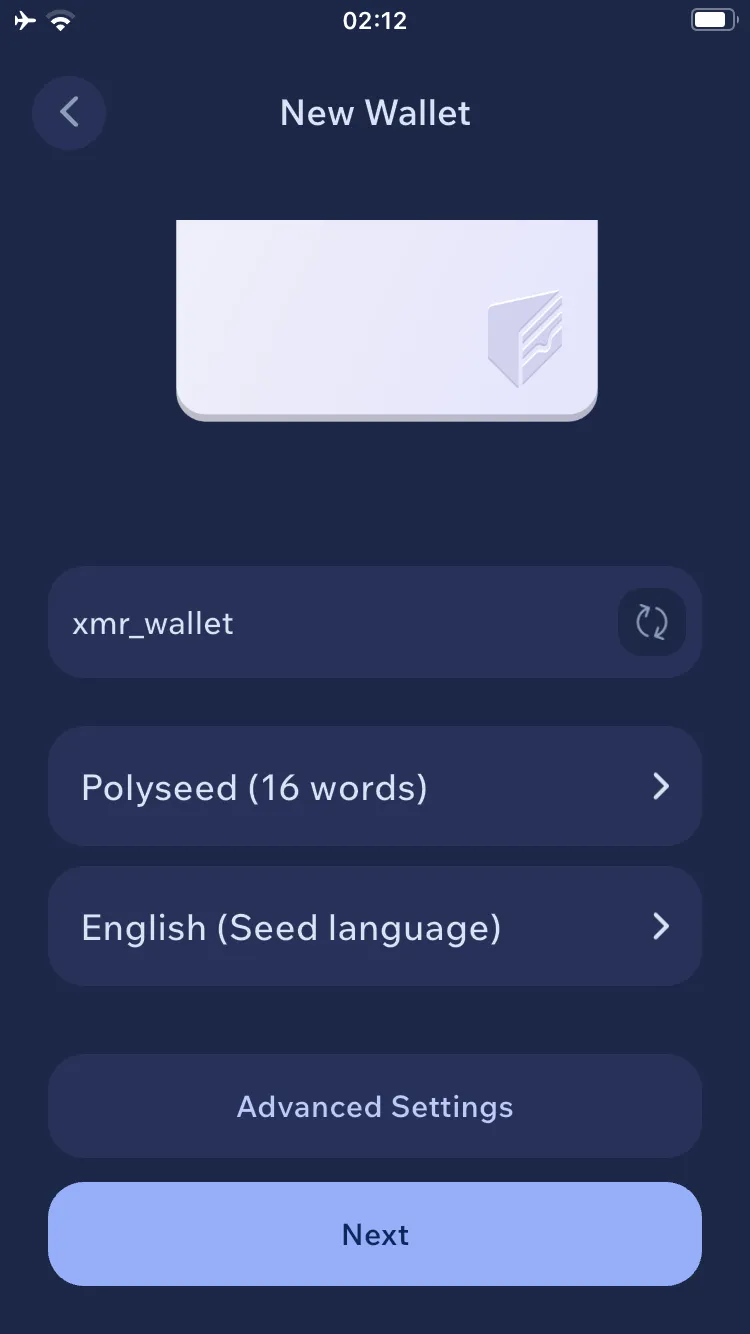
- Type a name for the wallet and click Advanced settings.
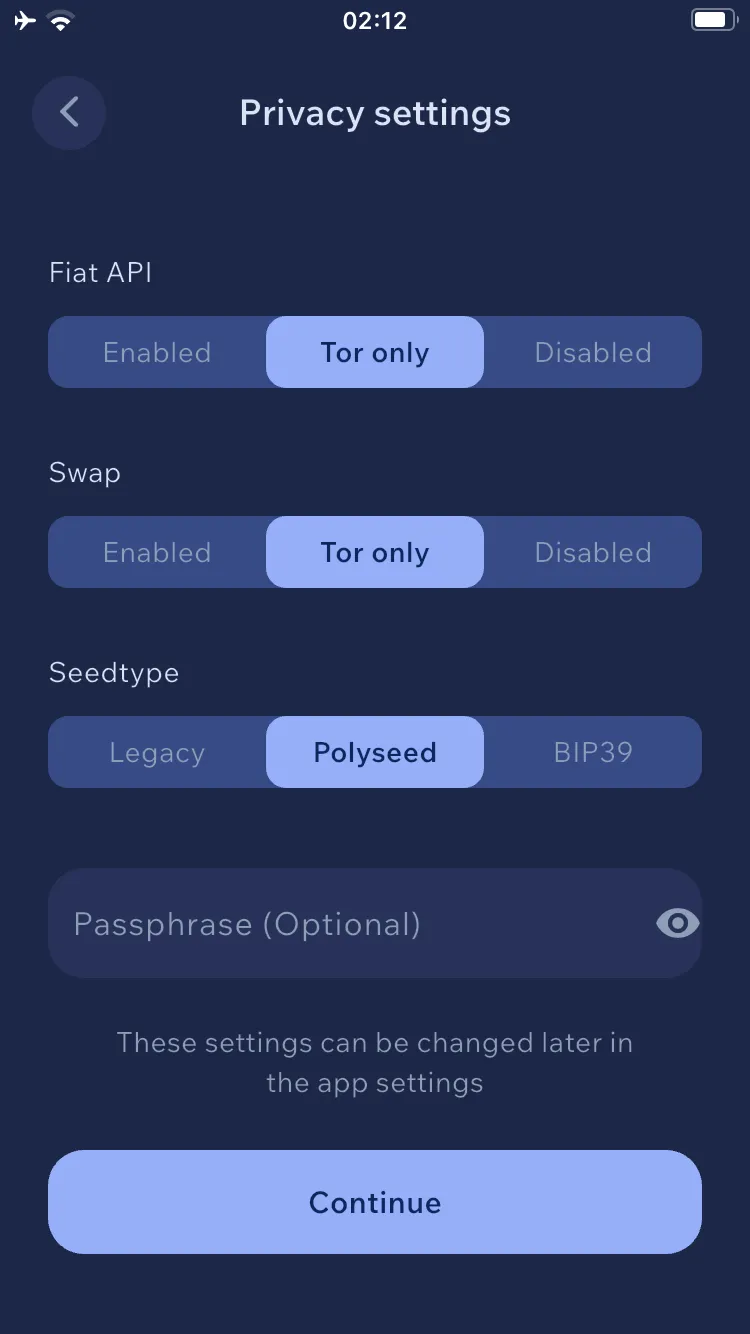
- Select Tor only everywhere and click Continue → Next.
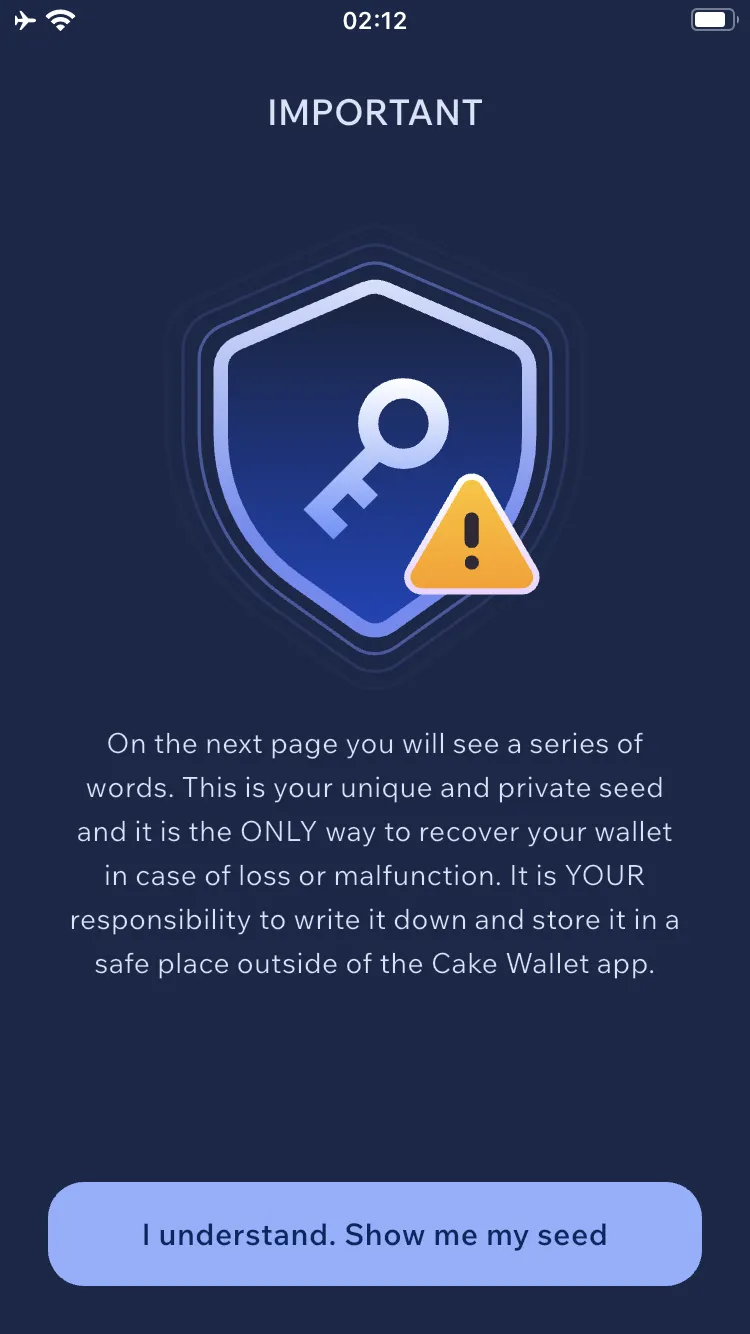
- Click I understand. Show me my seed.
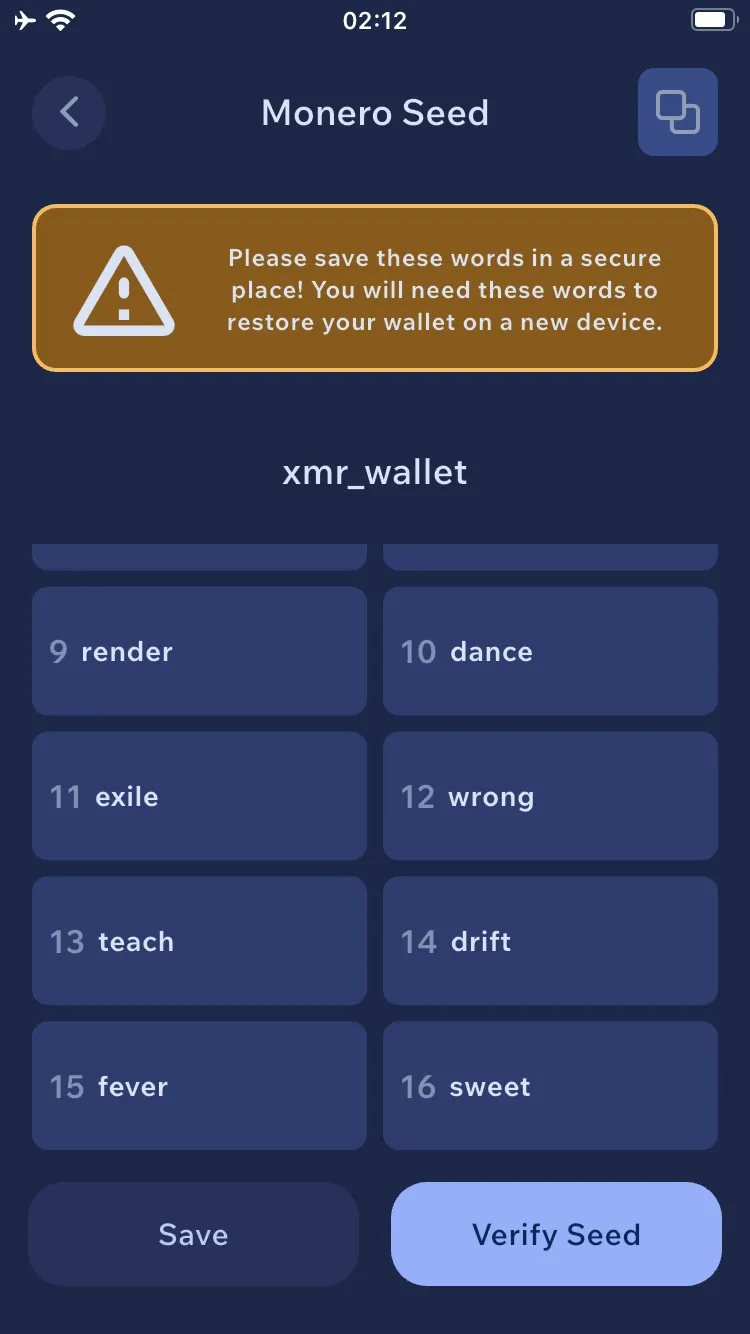
- The seed will be displayed. This is a security phrase that should be saved in a safe place with the date the wallet was created, for example, on an external USB drive encrypted with Veracrypt, TrueCrypt, or LUKS. If recovery is required, you will be asked to enter the security phrase to recover the wallet along with its creation date. The creation date is required to retrieve the correct number of blocks from the Monero network. Entering too late a date during recovery may result in an incorrect amount of funds displayed in the wallet. Click Verify seed, then enter the selected words according to the instructions.
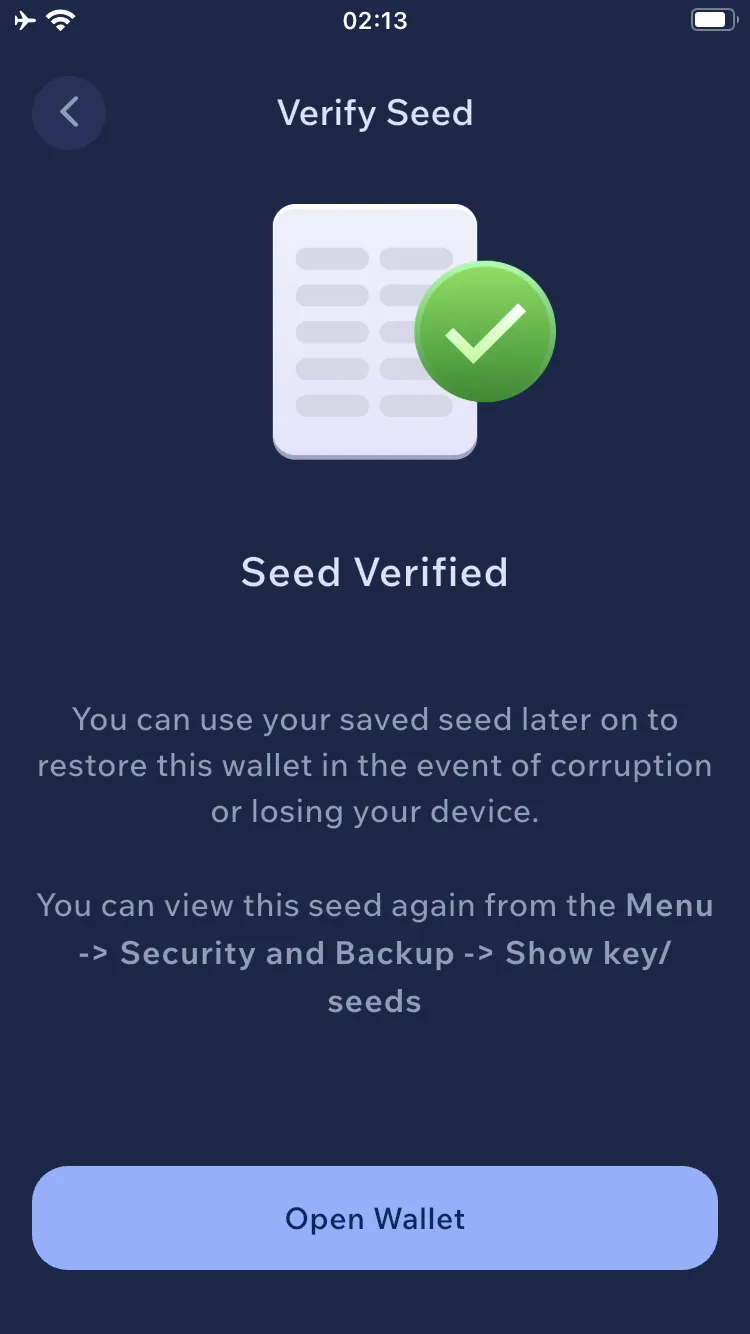
- Select Open Wallet.
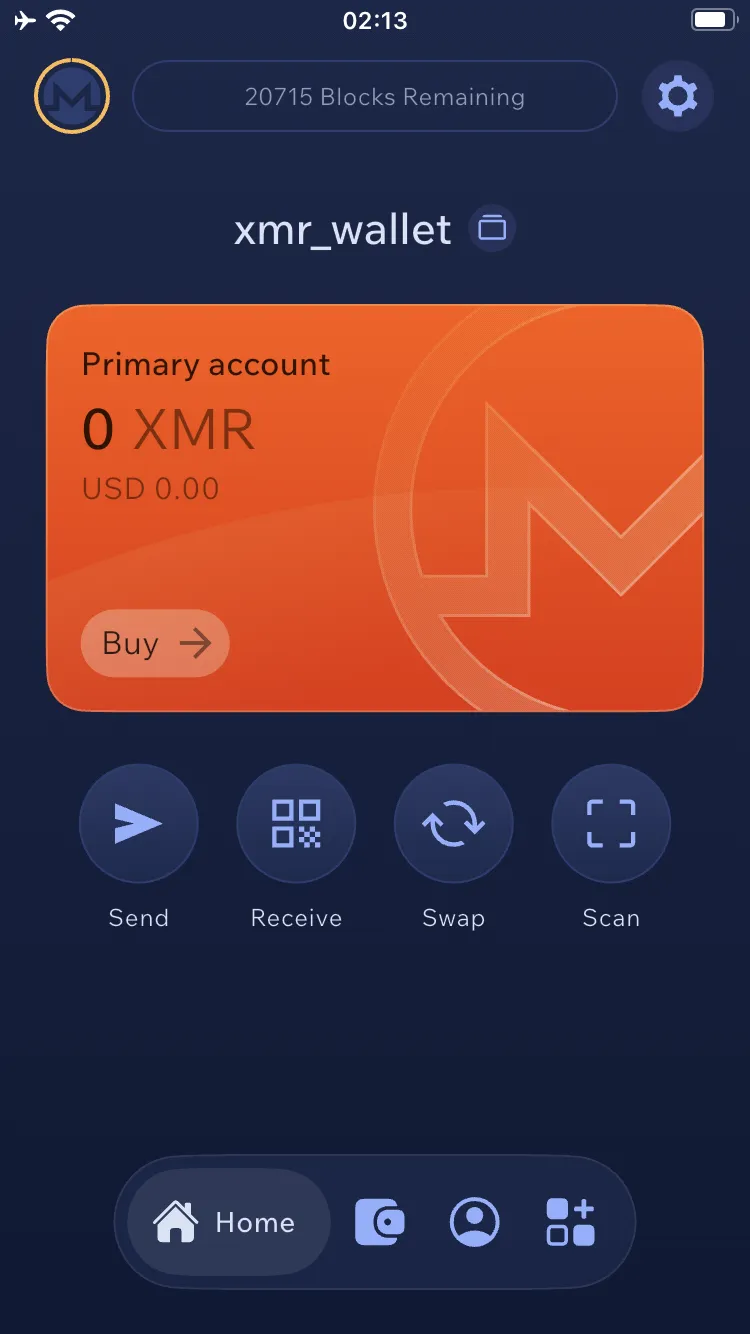
- Wait for the node to synchronize when launching the wallet for the first time. The status Blocks remaining at the top of the screen will inform you that synchronization is not yet complete. Route the connection through the Tor network by clicking the settings icon (cogwheel) in the upper right corner of the screen, then Connections → Connection and sync and check Enable built in Tor.
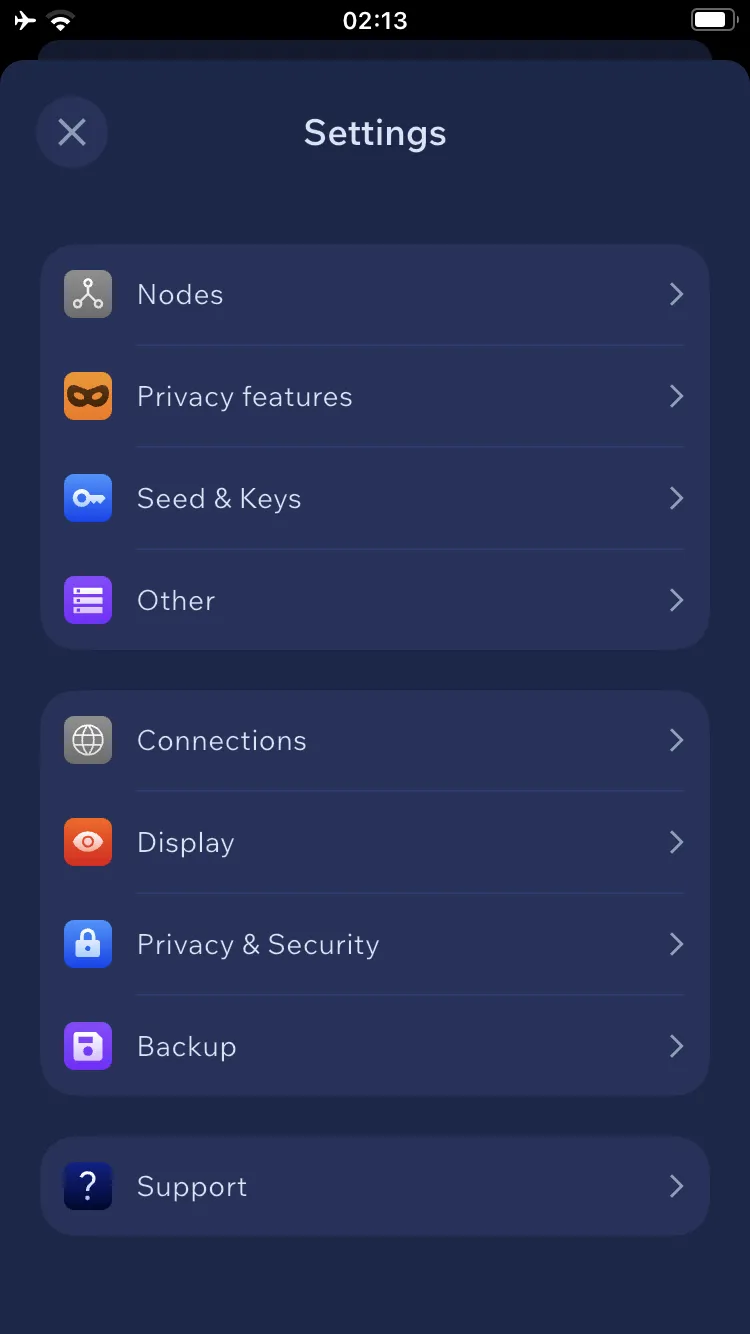
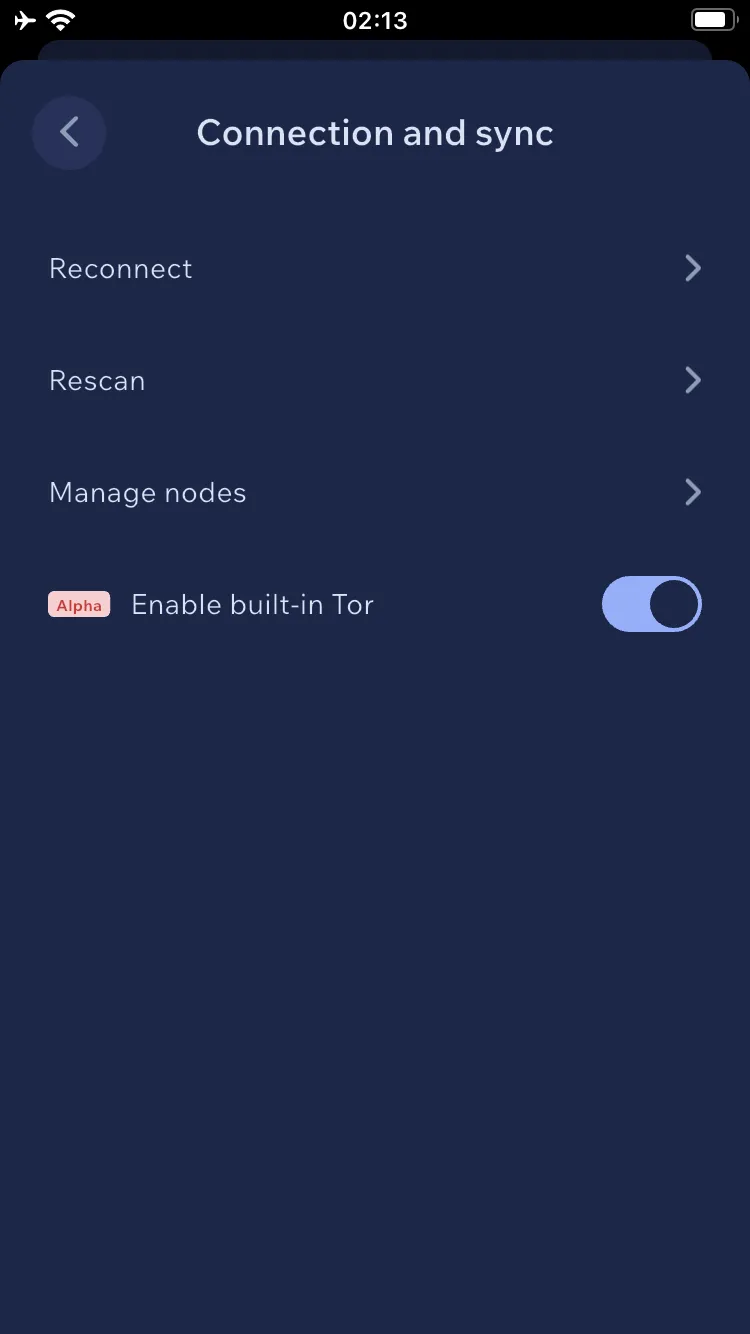
If you have connection problems, click the settings icon (cogwheel) in the upper right corner of the screen, then Connections → Connection and sync → Reconnect.
Receiving funds #
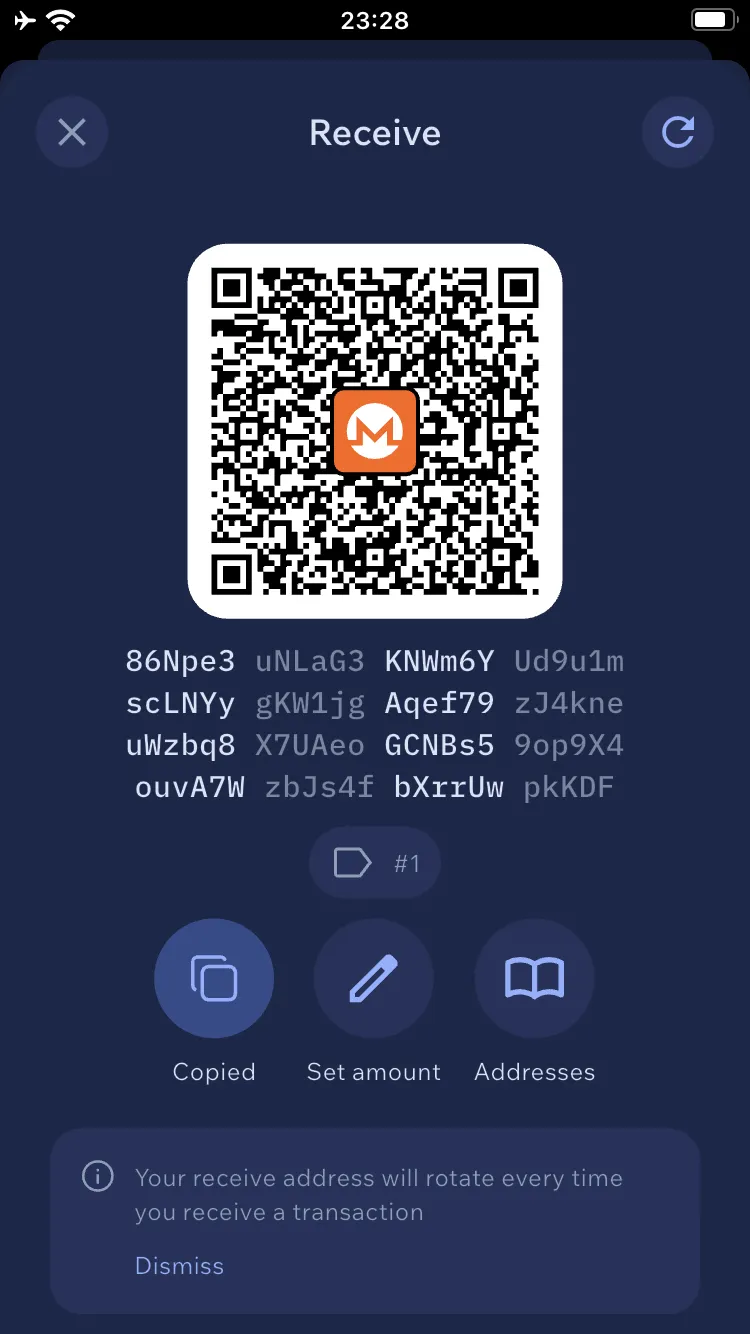
- To receive funds, go to Receive and copy your address by clicking the Copy button. Paste it where you want to receive funds, for example, in the appropriate section of the exchange or by sending it to the appropriate person. You can generate a new subaddress by clicking the Refresh button in the upper right corner (arrow symbol). It is a good idea to use subaddresses once and generate a new one for each transaction to maximize the privacy of your funds. All incoming transactions to any of the subaddresses add up, and their balance is common to the entire account.
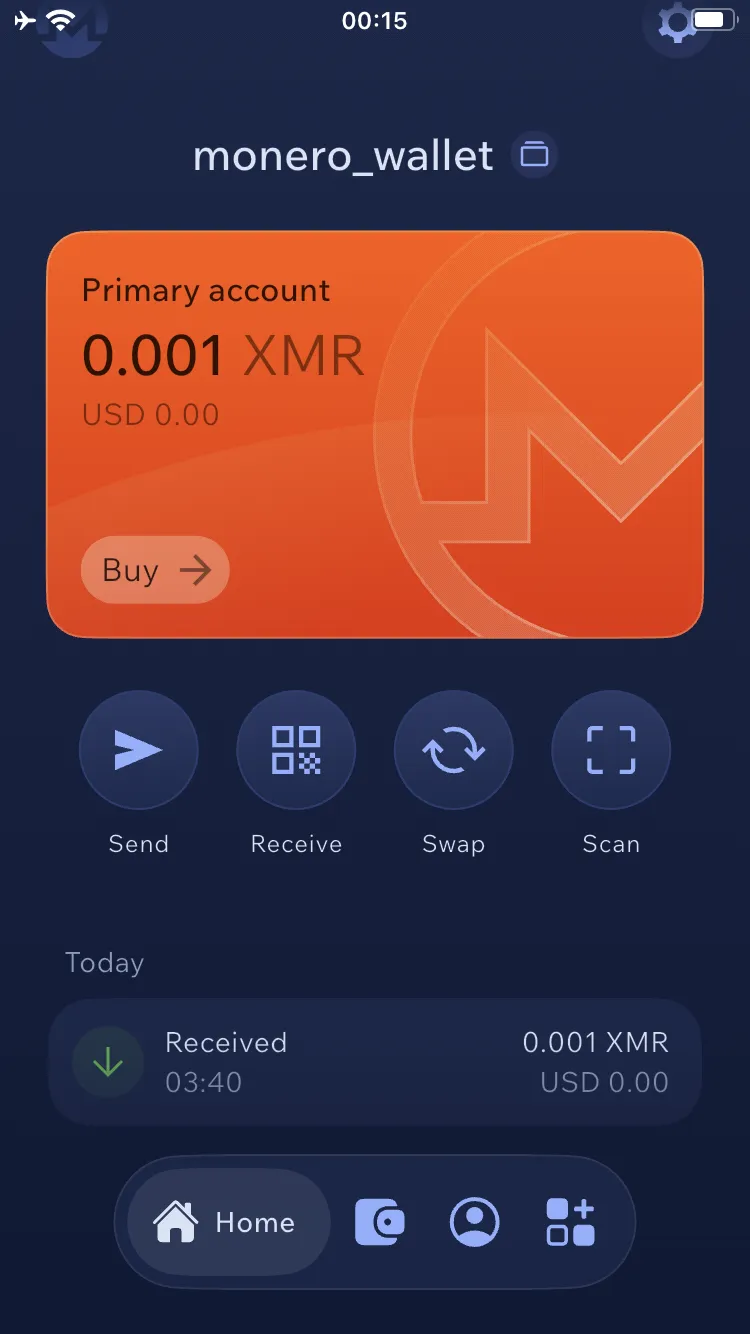
- After receiving funds, you can see the entire history of funds received and sent in the main menu.
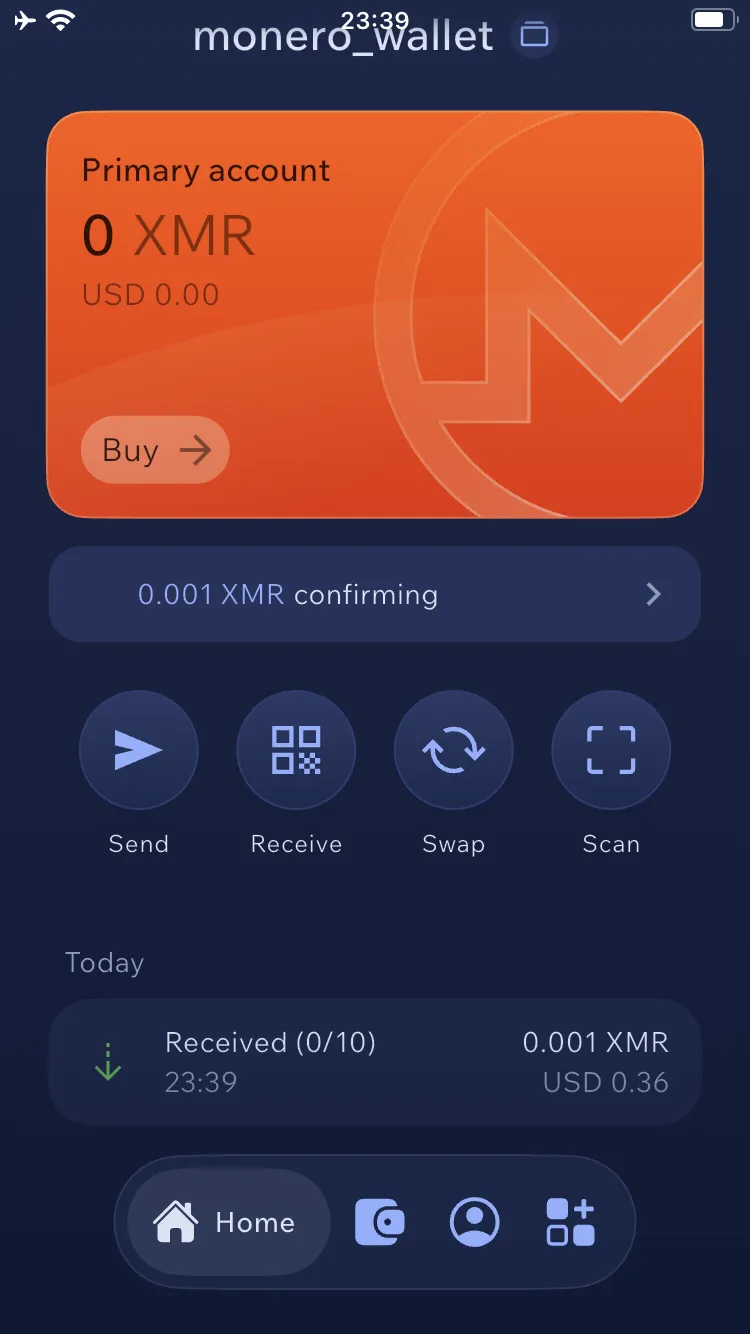
- Before sending the received funds, you must wait for 10 confirmations from the Monero network.
Sending funds #
- To send funds, go to the Send tab. Under Address or alias, paste the destination Monero address. Under Amount, enter the amount. Expand Advanced Settings and verify the Fees amount (transaction fee); it should be a few cents. Click the Continue button. After a few seconds, a confirmation window will appear. Before confirming the sending, make sure you have entered the correct Monero destination address. Click Continue.
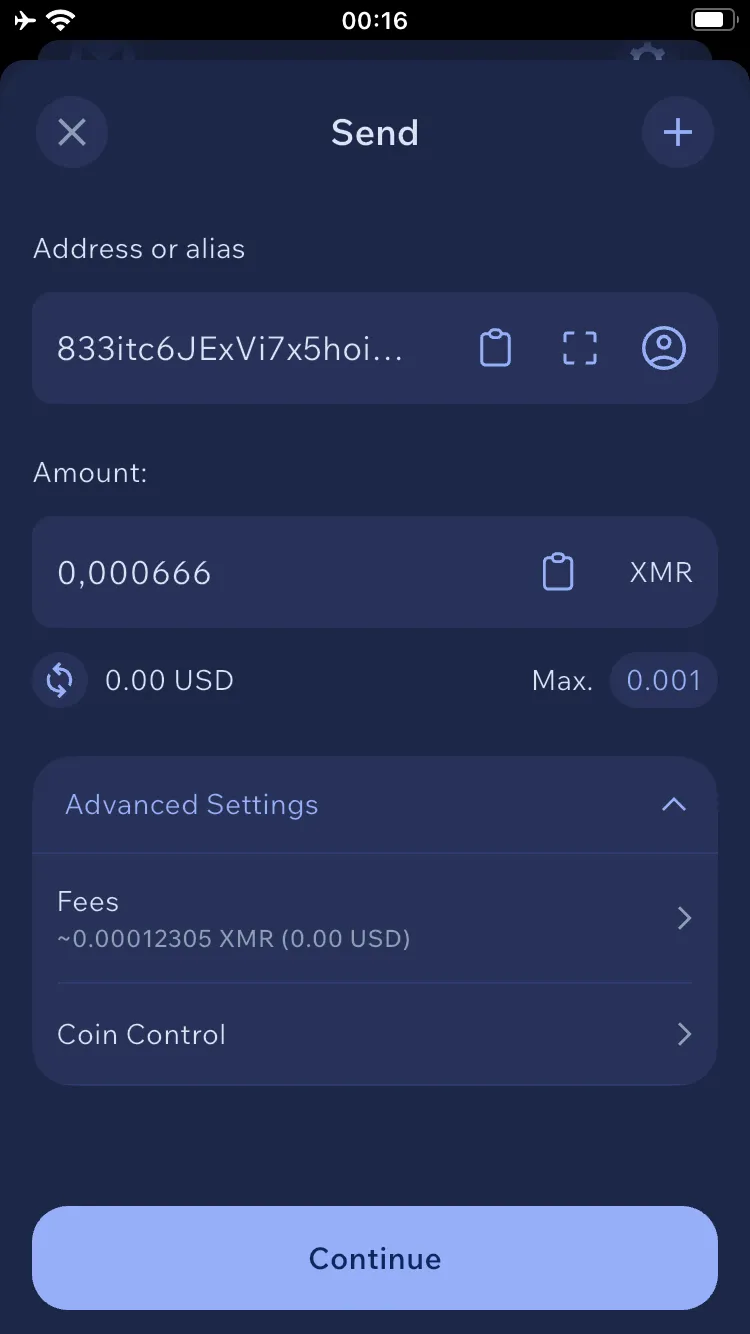
WARNING: This action cannot be undone. Providing an incorrect address may result in loss of funds.
After checking the transaction details again, slide the Swipe to send button to the right.
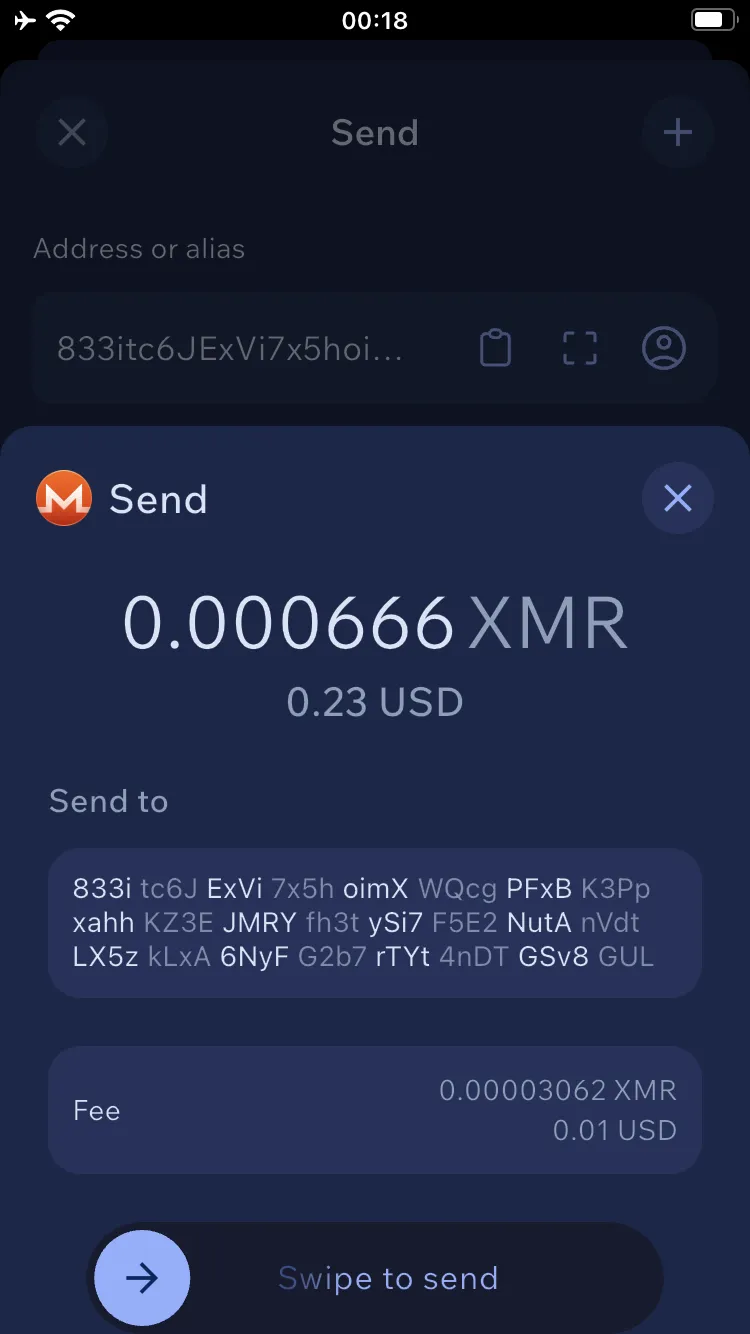
- Wait for 10 confirmations from the Monero network before continuing to use the subaddress after sending funds.